
在本部分中,我們將使用在第 1 部分:理論中學到的 API 建立一個 Pomodoro 計時器擴充套件。樣式設計將使用 CSS 完成。本專案的完整程式碼可在 GitHub 上找到。
Manifest 和 Popup
大家現在都知道,在構建擴充套件時,建立的第一個檔案是 manifest 檔案。
建立一個新的 manifest.json 檔案。
📦 Chrome-Extension-Series
┣ 🎨 icon.png
┣ 📄 manifest.json
{
"manifest_version": 3,
"name": "Pomodoro Timer",
"version": "1.0",
"description": "Assists you to focus and get things done",
"icons": {
"16": "icon.png",
"48": "icon.png",
"128": "icon.png"
},
"action": {
"default_icon": "icon.png",
"default_title": "Pomodoro Timer",
"default_popup": "popup/popup.html"
}
}
現在我們已經設定好副檔名,讓我們建立彈出頁面。popup.html 檔案放在 popup 資料夾中,為我們的專案新增結構。
📦 Chrome-Extension-Series
┣ 🎨 icon.png
┣ 📄 manifest.json
┣ 📂 popup
┃  ┣ 📄 popup.html
 <!DOCTYPE html>
<html lang="en">
<head>
<meta charset="UTF-8">
<meta http-equiv="X-UA-Compatible" content="IE=edge">
<meta name="viewport" content="width=device-width, initial-scale=1.0">
<link rel="stylesheet" href="./popup.css">
<title>Pomodoro Timer</title>
</head>
<body>
<div class="header">
<img src="../icon.png">
</div>
<h1>00:00</h1>
<button>Start Timer</button>
<button>Add Task</button>
<div>
<input type="text">
<input type="button" value="X">
</div>
</body>
<script src="popup.js"></script>
</html>
在前面的程式碼中,我們定義了彈出頁面的結構。它與 pop.css 檔案相連,用於設計樣式,與 pop.js 檔案相連,用於互動。
讓我們新增一些樣式,並建立與 popup.html 連結的 popup.css 檔案。
📦 Chrome-Extension-Series
┣ 🎨 icon.png
┣ 📄 manifest.json
┣ 📂 popup
┣ 📄 popup.css
 body {
height: 400px;
width: 300px;
}
.header {
display: flex;
justify-content: center;
height: 40px;
}
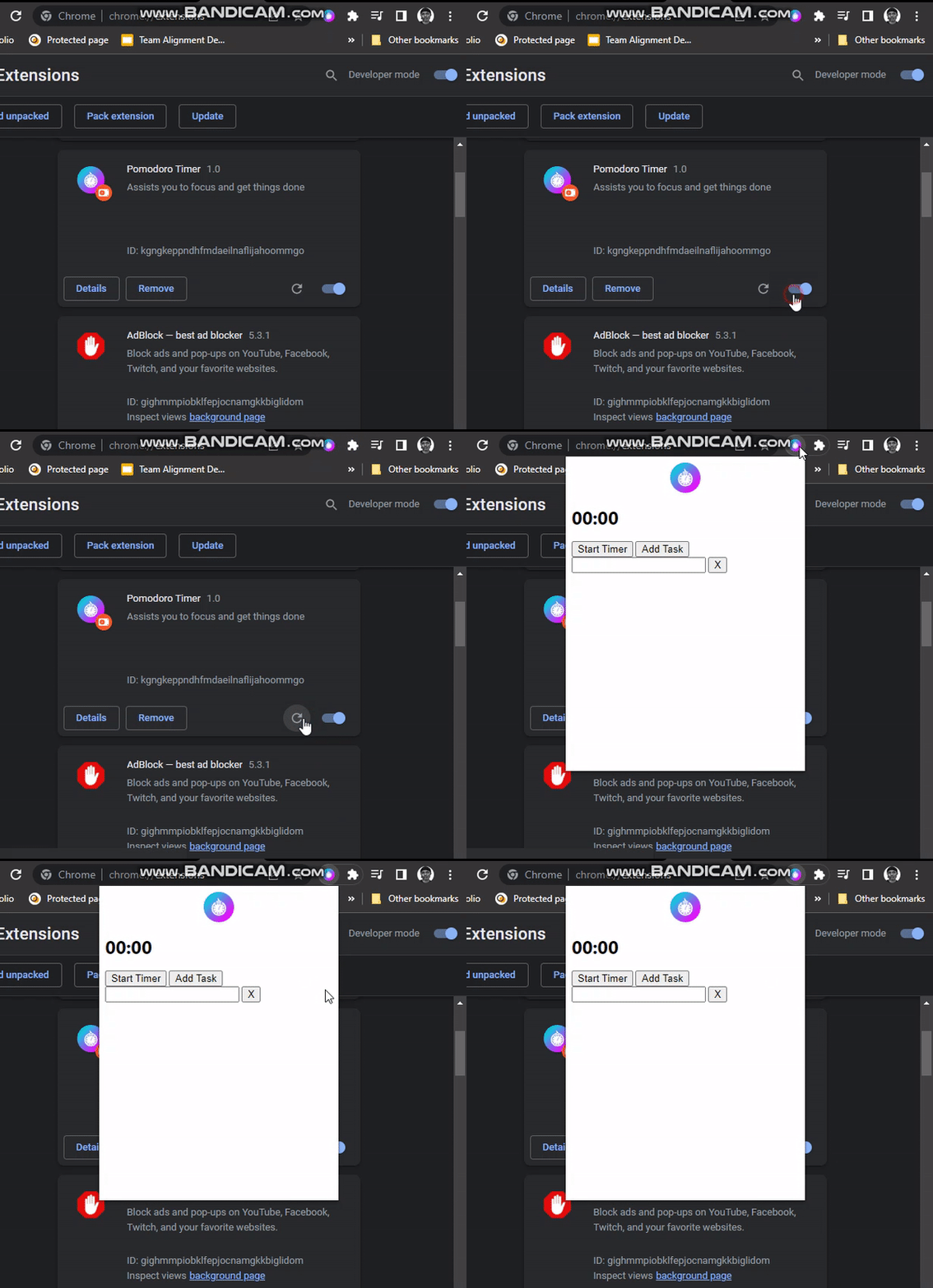
在瀏覽器上重新載入擴充套件頁面並點選彈出視窗,彈出視窗會顯示 popup.html。
任務列表功能
通過任務列表功能,我們可以新增和刪除任務。
新增任務
在 popup.html 中
<!DOCTYPE html>
<html lang="en">
<head>
<meta charset="UTF-8">
<meta http-equiv="X-UA-Compatible" content="IE=edge">
<meta name="viewport" content="width=device-width, initial-scale=1.0">
<link rel="stylesheet" href="./popup.css">
<title>Pomodoro Timer</title>
</head>
<body>
<div class="header">
<img src="../icon.png">
</div>
<h1>00:00</h1>
<button>Start Timer</button>
<button id="add-task-btn">Add Task</button>
+    <div id="task-container">
<input type="text">
<input type="button" value="X">
+    </div>
</body>
<script src="popup.js"></script>
</html>
在 popup.js 中
📦 Chrome-Extension-Series
┣ 🎨 icon.png
┣ 📄 manifest.json
┣ 📂 popup
┣ 📄 popup.css
┣ 📄 popup.js
const addTaskBtn = document.getElementById('add-task-btn')
addTaskBtn.addEventListener('click', () => addTask())
function addTask() {
const taskRow = document.createElement('div')
// Create text input
const text = document.createElement('input')
text.type = 'text'
text.placeholder = 'Enter a task..'
// Create delete button
const deleteBtn = document.createElement('input')
deleteBtn.type = 'button'
deleteBtn.value = 'X'
// append input elements to taskRow
taskRow.appendChild(text)
taskRow.appendChild(deleteBtn)
// append taskRow to taskContainer
const taskContainer = document.getElementById('task-container')
taskContainer.appendChild(taskRow)
}
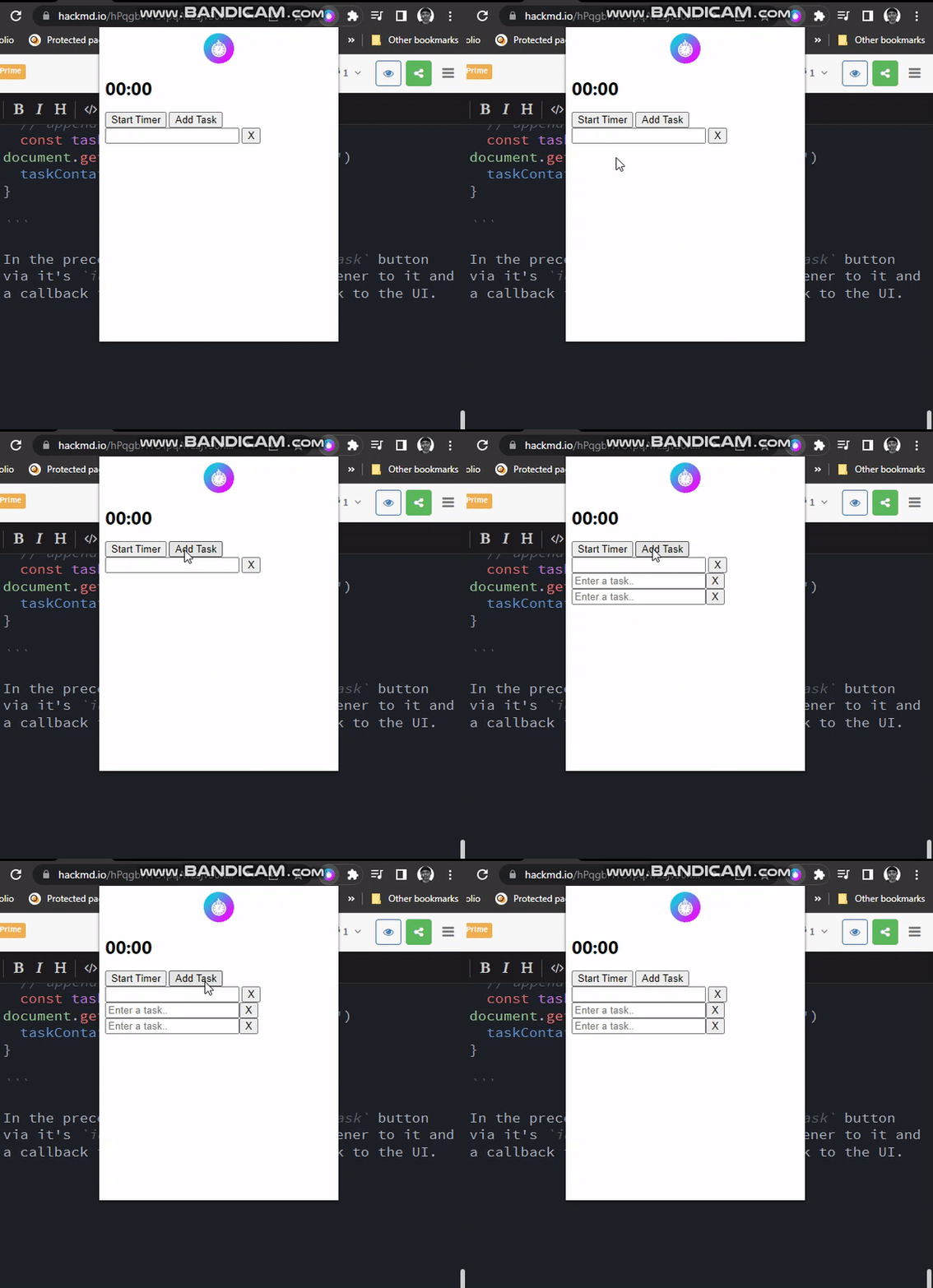
在前面的程式碼中,我們通過 Add Task 按鈕的 id 選擇了該按鈕,新增了一個 click 事件監聽器和一個回撥函式,該函式用於在使用者介面中新增一個新任務。
刪除任務
在 popup.js 中
- const addTaskBtn = document.getElementById('add-task-btn')
addTaskBtn.addEventListener('click', () => addTask())
- function addTask() {
const taskRow = document.createElement('div')
// Create text input
-  const text = document.createElement('input')
text.type = 'text'
text.placeholder = 'Enter a task..'
// Create delete button
-  const deleteBtn = document.createElement('input')
deleteBtn.type = 'button'
deleteBtn.value = 'X'
// append input elements to taskRow
taskRow.appendChild(text)
taskRow.appendChild(deleteBtn)
// append taskRow to taskContainer
-  const taskContainer = document.getElementById('task-container')
taskContainer.appendChild(taskRow)
}
// array to store tasks
let tasks = []
const addTaskBtn = document.getElementById('add-task-btn')
addTaskBtn.addEventListener('click', () => addTask())
// render tasks
function renderTask(taskNum) {
const taskRow = document.createElement('div')
// Create text input
const text = document.createElement('input')
text.type = 'text'
text.placeholder = 'Enter a task..'
//Set and track input values of tasks in the array
text.value = tasks[taskNum]
text.addEventListener('change', () => {
tasks[tasksNum] = text.value
})
// Create delete button
const deleteBtn = document.createElement('input')
deleteBtn.type = 'button'
deleteBtn.value = 'X'
// delete task
deleteBtn.addEventListener('click', () => {
deleteTask(taskNum)
})
// append input elements to taskRow
taskRow.appendChild(text)
taskRow.appendChild(deleteBtn)
// append taskRow to taskContainer
const taskContainer = document.getElementById('task-container')
taskContainer.appendChild(taskRow)
}
function addTask() {
const tasksNum = tasks.length
// add tasks to array
tasks.push('')
renderTask(tasksNum)
}
// delete and re-render tasks after mutation
function deleteTask(tasksNum) {
tasks.splice(tasksNum, 1)
renderTasks()
}
function renderTasks() {
const taskContainer = document.getElementById('task-container')
taskContainer.textContent = ''
tasks.forEach((taskText, tasksNum) => {
renderTask(tasksNum)
})
}
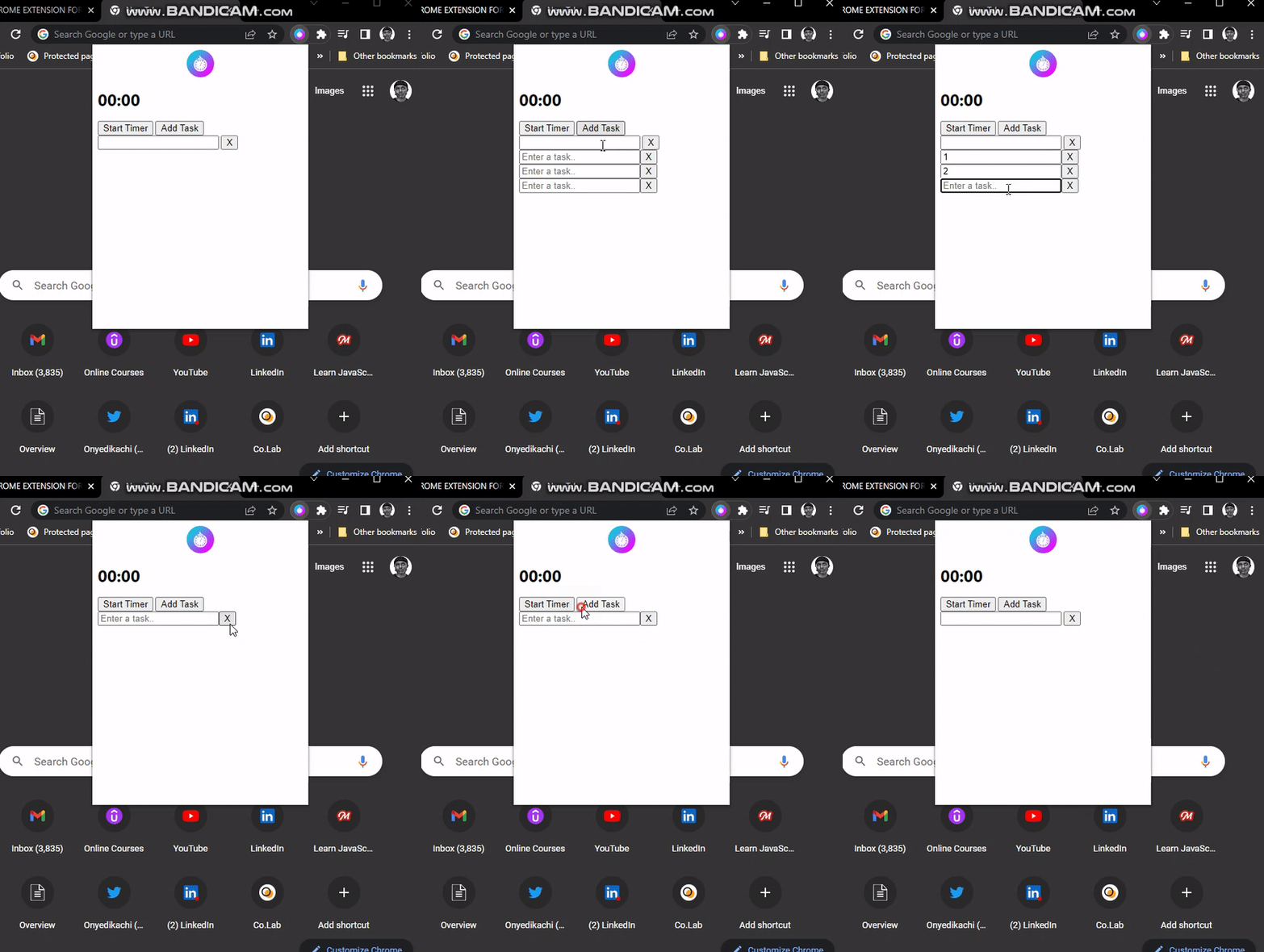
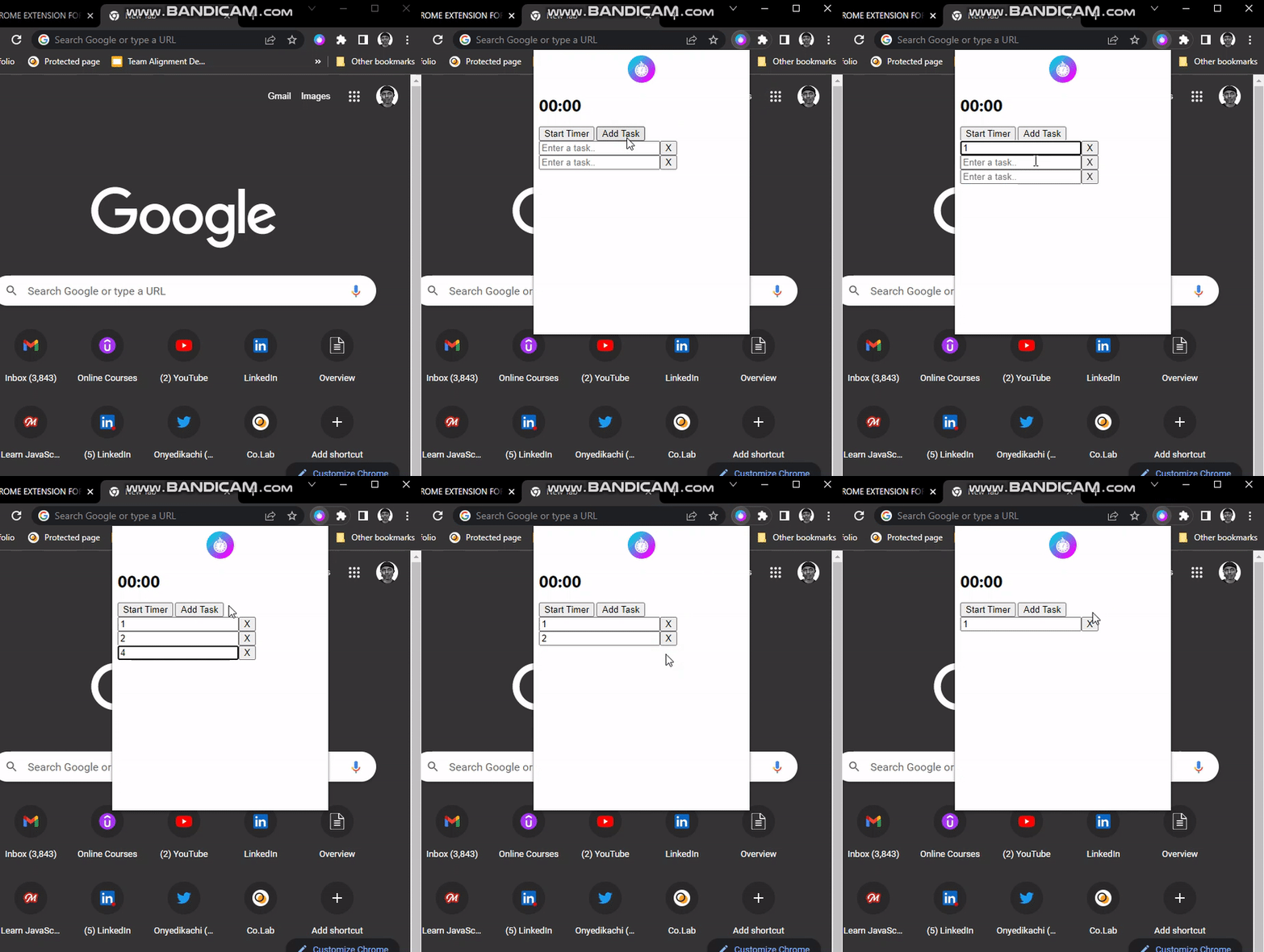
在前面的程式碼中,我們對 popup.js 檔案進行了重大修改。讓我們來了解一下發生了什麼:
- 基本上,我們正在新增和刪除任務
- 建立一個陣列(
tasks)來儲存任務 - 當點選
Add Task按鈕時,rendTask()函式會建立一個新任務並將其呈現在 DOM(文件物件模型)上。 -
addTask()函式是新增任務按鈕的事件處理程式 - 當點選刪除任務按鈕(
X)時,deleteTask()函式會刪除任務。 - 每當刪除一個任務時,
renderTasks()函式都會更新任務陣列,即重新渲染使用者介面。
現在,如果我們檢查擴充套件,就可以新增和刪除任務,但資料不是持久的,我們需要實現儲存。
儲存任務
首先,我們在 manifest.json 中設定了使用儲存 API 所需的許可權。
{
"manifest_version": 3,
"name": "Pomodoro Timer",
"version": "1.0",
"description": "Assists you to focus and get things done",
"icons": {
"16": "icon.png",
"48": "icon.png",
"128": "icon.png"
},
"action": {
"default_icon": "icon.png",
"default_title": "Pomodoro Timer",
"default_popup": "popup/popup.html"
},
+ "permissions": ["storage"]
}
在 popup.js 中
// array to store tasks
let tasks = []
const addTaskBtn = document.getElementById('add-task-btn')
addTaskBtn.addEventListener('click', () => addTask())
// set default storage value for the tasks
chrome.storage.sync.get(['tasks'], (res) => {
tasks = res.tasks ? res.tasks : []
renderTasks()
})
// save tasks
function saveTasks() {
chrome.storage.sync.set({
tasks: tasks,
})
}
// render tasks
function renderTask(taskNum) {
const taskRow = document.createElement('div')
// Create text input
const text = document.createElement('input')
text.type = 'text'
text.placeholder = 'Enter a task..'
//Set and track input values of tasks in the array
text.value = tasks[taskNum]
text.addEventListener('change', () => {
tasks[taskNum] = text.value
// call saveTask whenever a value changes
saveTasks()
})
....
function addTask() {
const tasksNum = tasks.length
// add tasks to array
tasks.push('')
renderTask(tasksNum)
saveTasks()
}
// delete and re-render tasks after mutation
function deleteTask(tasksNum) {
tasks.splice(tasksNum, 1)
renderTasks()
saveTasks()
}
在前面的程式碼中,我們使用 Chrome 瀏覽器的儲存 API 來儲存擴充套件資料。
- 如果任務陣列中沒有要渲染的任務,擴充套件的預設資料最初會設定為空陣列。
saveTasks()函式將我們的任務陣列儲存在儲存 API 中。- 在
renderTask()中,每當新增或刪除一個任務時,都會通過saveTasks()進行儲存,addTask()和deleteTask()也是如此。
任務功能已完成;我們可以刪除、新增和儲存任務。
計時器功能
計時器功能要求我們建立一個後臺指令碼,並使用警報和通知在計時器時間到時通知使用者。
啟動和暫停計時器
讓我們在 manifest.json 中設定所需的許可權。
{
"manifest_version": 3,
"name": "Pomodoro Timer",
"version": "1.0",
"description": "Assists you to focus and get things done",
"icons": {
"16": "icon.png",
"48": "icon.png",
"128": "icon.png"
},
"action": {
"default_icon": "icon.png",
"default_title": "Pomodoro Timer",
"default_popup": "popup/popup.html"
},
+ "permissions": ["storage", "alarms", "notifications"],
+    "background": {
"service_worker": "background.js"
}
}
為我們的背景指令碼建立 background.js 檔案。
📦 Chrome-Extension-Series
┣ 🎨 icon.png
┣ 📄 manifest.json
┣ 📂 popup
┣ 📄 popup.css
┣ 📄 popup.js
┣ 📄 background.js
// create an alarm to notify user when time is up
chrome.alarms.create("pomodoroTimer", {
periodInMinutes: 1 / 60
})
// alarm listener
chrome.alarms.onAlarm.addListener((alarm) => {
if (alarm.name === "pomodoroTimer") {
chrome.storage.local.get(["timer", "isRunning"], (res) => {
if (res.isRunning) {
let timer = res.timer + 1
console.log(timer)
chrome.storage.local.set({
timer,
})
}
})
}
})
// storage to set and track timer variables on load
chrome.storage.local.get(["timer", "isRunning"], (res) => {
chrome.storage.local.set({
timer: "timer" in res ? res.timer : 0,
isRunning: "isRunning" in res ? res.isRunning : false,
})
})
在 popup.js 中
// array to store tasks
let tasks = []
// Start Timer Button
+ const startTimerBtn = document.getElementById("start-timer-btn");
startTimerBtn.addEventListener("click", () => {
chrome.storage.local.get(["isRunning"], (res) => {
chrome.storage.local.set({
isRunning: !res.isRunning,
}, () => {
startTimerBtn.textContent = !res.isRunning ? "Pause Timer" : "Start Timer"
})
})
})
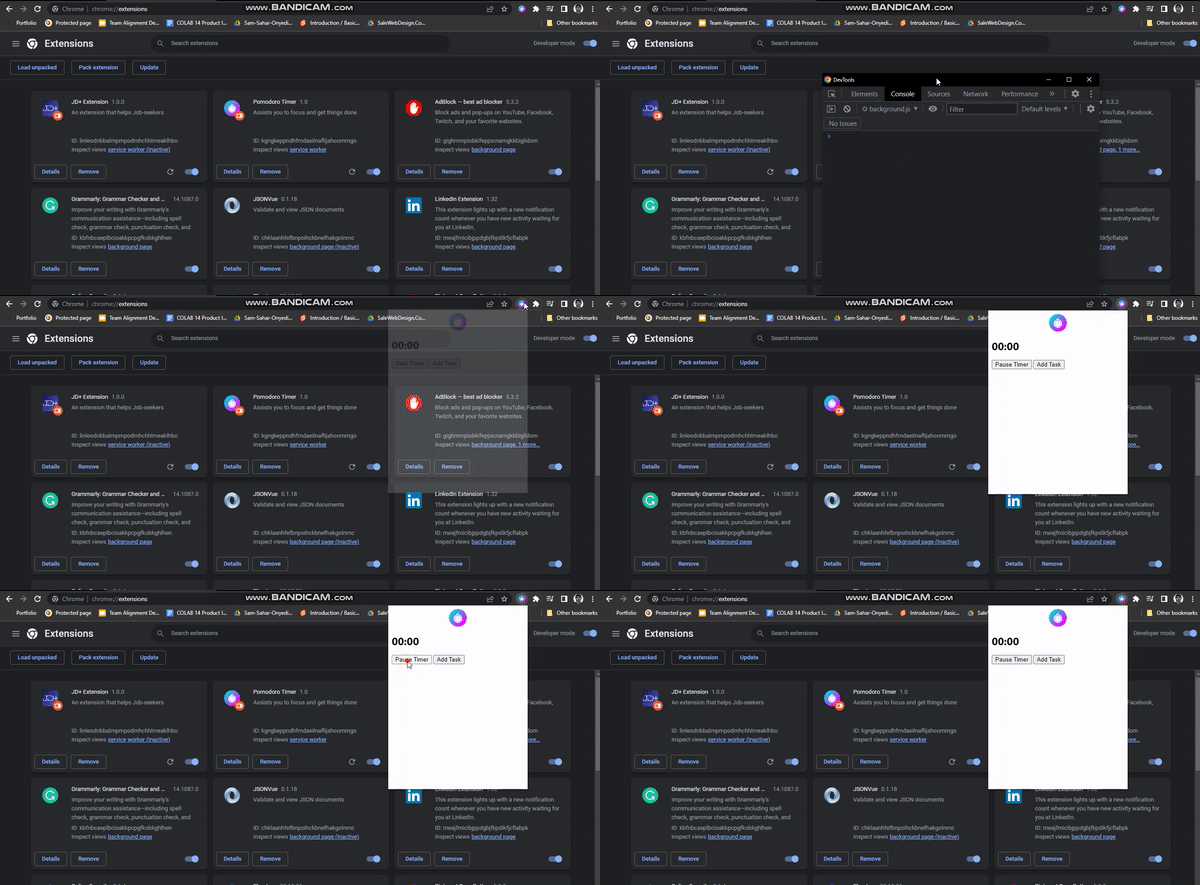
在前面的程式碼中:
- 我們設定了一個鬧鐘,當點選開始計時器按鈕時觸發。
timer和isRunning變數用於跟蹤時間和計時器的狀態,它們作為應用程式初始資料儲存在儲存器中。- 我們監聽(
onAlarm.addListener)警報,並在isRunning為true時遞增timer,然後將timer記錄到控制檯。 - 最後,在
popup.js中,我們監聽 Start Timer 按鈕的click事件,並獲取當前的isRunning值。如果當前值為true,則設定為false,計時器暫停;如果當前值為false,則設定為true,重置計時器。
重置計時器
現在,讓我們來開發重置計時器功能。建立重置按鈕 popup.html 的標記。
<body>
<div class="header">
<img src="../icon.png">
</div>
<h1>00:00</h1>
<button id="start-timer-btn">Start Timer</button>
+    <button id="reset-timer-btn">Reset Timer</button>
<button id="add-task-btn">Add Task</button>
<div id="task-container">
<input type="text">
<input type="button" value="X">
</div>
</body>
在 popup.js 中
// Reset Timer Button
const resetTimerBtn = document.getElementById("reset-timer-btn")
resetTimerBtn.addEventListener("click", () => {
chrome.storage.local.set({
// reset variables
timer: 0,
isRunning: false
}, () => {
// reset start button text-content
startTimerBtn.textContent = "Start Timer"
})
})
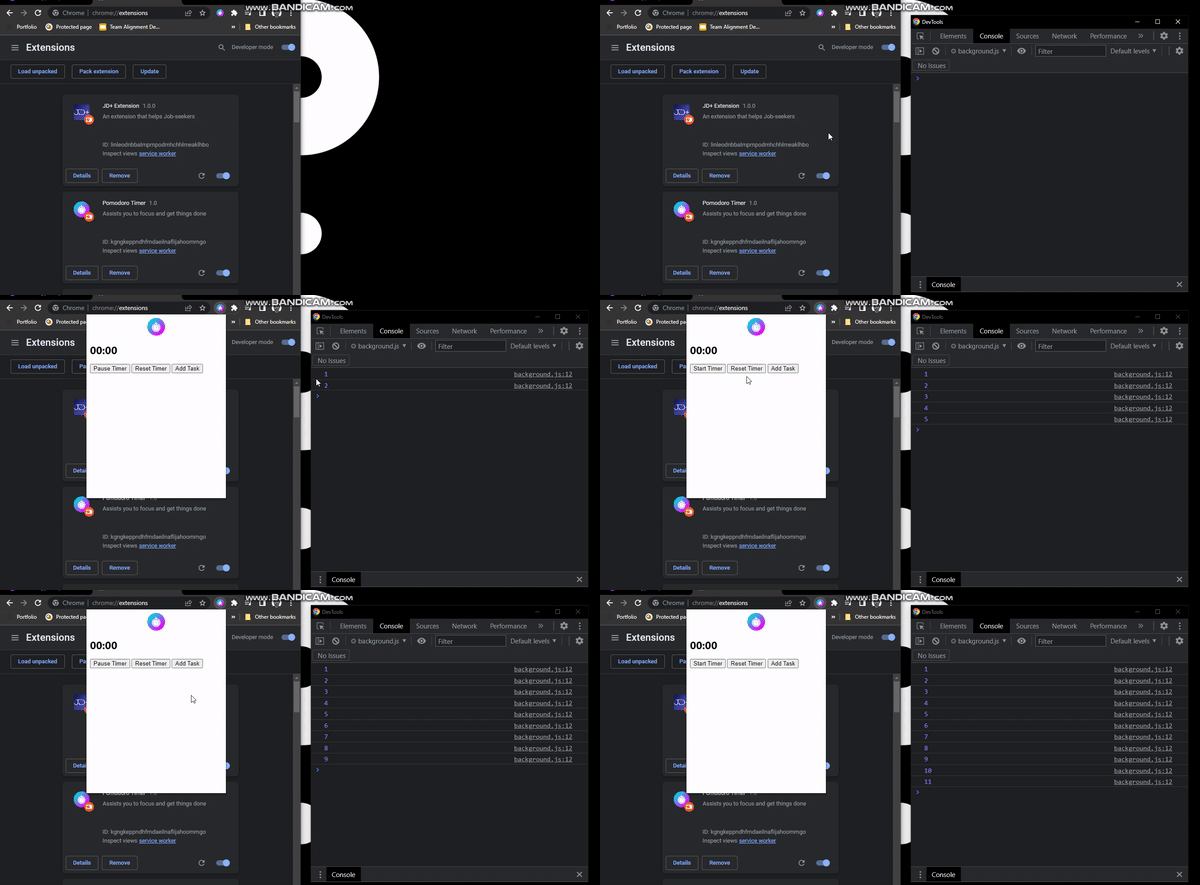
在前面的程式碼中,我們執行了以下操作:
- 通過
id選擇 DOM 上的Reset Timer按鈕。 - 為按鈕新增一個
click事件監聽器,並使用回撥函式重置timer和儲存中的isRunning變數。 - 最後,根據當前為 “暫停計時器” 的假設,將
Start Timer按鈕文字設定為字串 “Start Timer”。
在彈出視窗中顯示時間
到目前為止,我們一直在控制檯上記錄計時器的值。讓我們在彈出頁面上顯示時間。
在 popup.html 中
<body>
<div class="header">
<img src="../icon.png">
</div>
+    <h1 id="time">00:00</h1>
<button id="start-timer-btn">Start Timer</button>
<button id="reset-timer-btn">Reset Timer</button>
<button id="add-task-btn">Add Task</button>
<div id="task-container">
<input type="text">
<input type="button" value="X">
</div>
</body>
在 popup.js 中
// array to store tasks
let tasks = [];
const time = document.getElementById("time");
// Update time every 1sec
function updateTime() {
chrome.storage.local.get(["timer"], (res) => {
const time = document.getElementById("time")
// get no. of minutes & secs
const minutes = `${25 - Math.ceil(res.timer / 60)}`.padStart(2, "0");
let seconds = "00";
if (res.timer % 60 != 0) {
seconds = `${60 -res.timer % 60}`.padStart(2, "0");
}
// show minutes & secs on UI
time.textContent = `${minutes}:${seconds}`
})
}
updateTime()
setInterval(updateTime, 1000)
// Start Timer Button
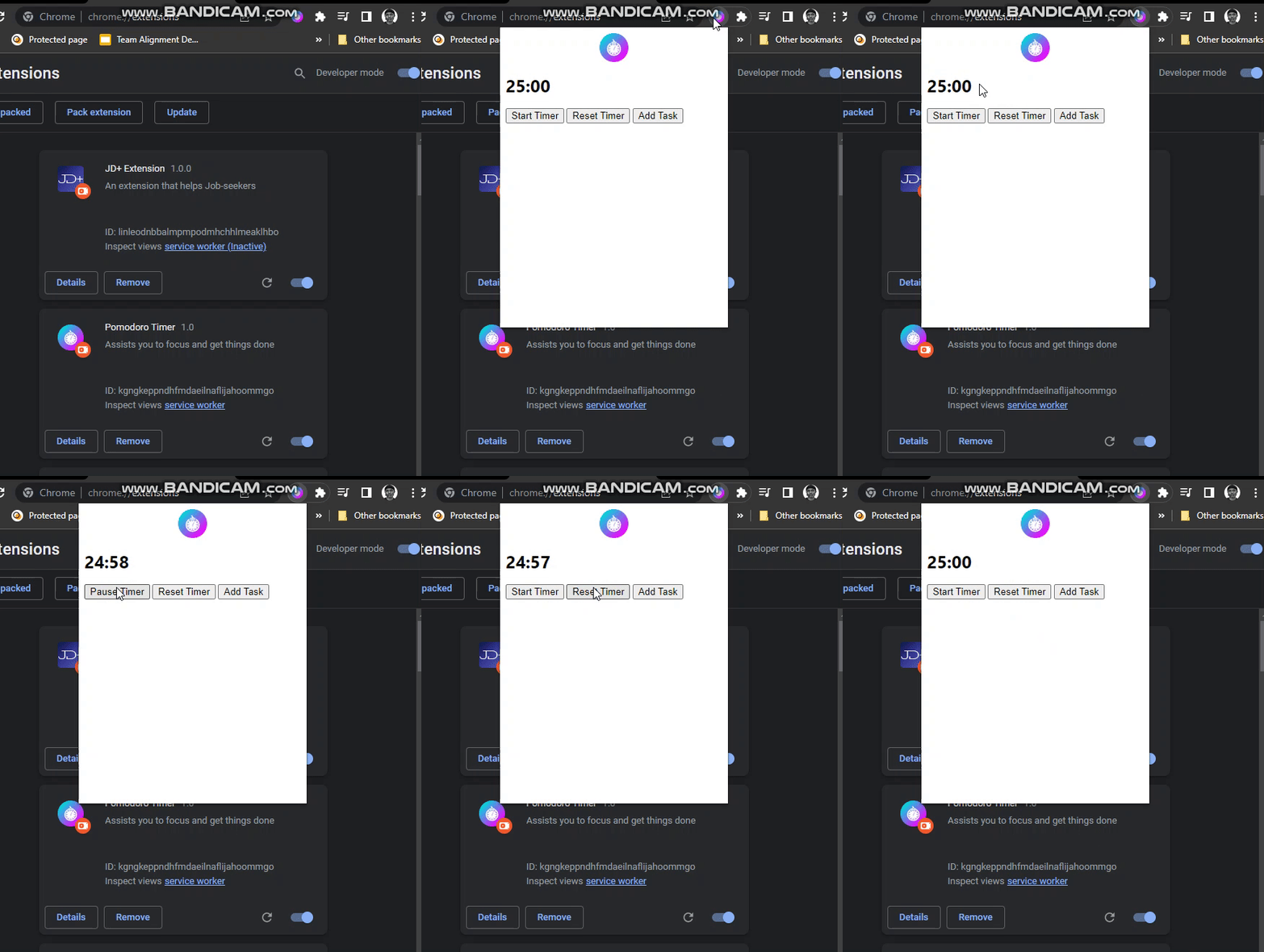
在前面的程式碼中,我們在彈出頁面上顯示時間,並在點選任何影響計時器的按鈕時更新時間。讓我們更好地理解這段程式碼:
-
updateTime()函式中進行了一些數學運算;計時器的值是從儲存空間中獲取的。 - 獲取計時器的分鐘數(計時器應從 25 分鐘開始倒計時)並儲存在
minute變數中。25 - res.timer / 60– 例如,如果我們的計時器值(res.timer)是 120 秒,120 / 60 = 2,那麼25 - 2 = 23,即時鐘將剩下 23 分鐘。 - 要獲得秒數,我們要將計時器值(
res.timer)除以60。 minutes和seconds的值通過time.textContent顯示在使用者介面上。-
updateTime()會在彈出視窗載入時自動呼叫,並通過setInterval每1sec呼叫一次。
現在可以在彈出視窗中看到時間了。
傳送通知
現在,讓我們設定通知,以便在時間到時通知使用者。
在 background.js 中
// alarm listener
chrome.alarms.onAlarm.addListener((alarm) => {
if (alarm.name === "pomodoroTimer") {
chrome.storage.local.get(["timer", "isRunning"], (res) => {
if (res.isRunning) {
let timer = res.timer + 1
let isRunning = true
if(timer === 25) {
this.registration.showNotification('Pomodoro Timer', {
body: "25 minutes has passed",
icon: "icon.png"
})
timer = 0
isRunning = false
}
chrome.storage.local.set({
timer,
isRunning,
})
}
})
}
})
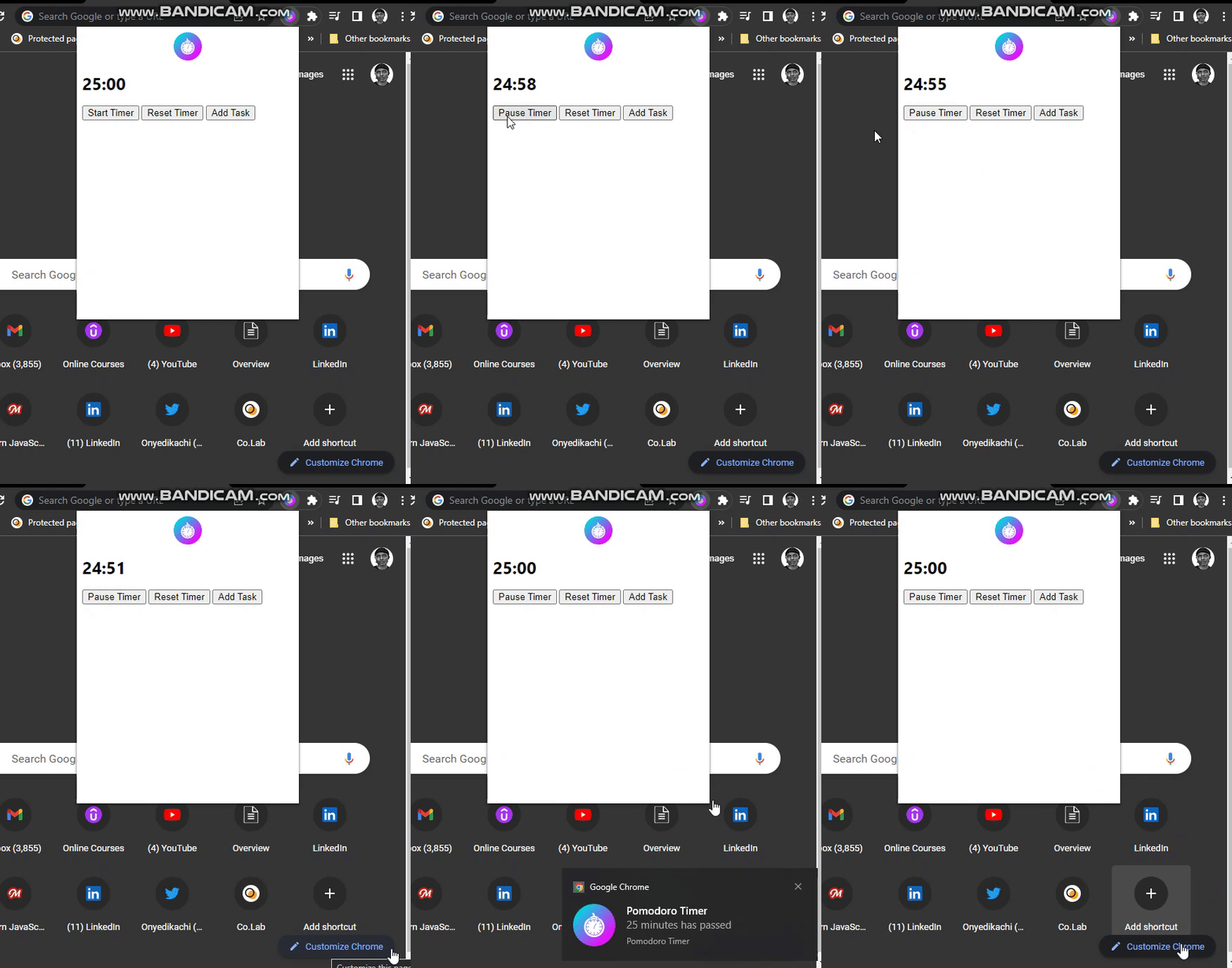
在前面的程式碼中,我們使用 if 語句檢查計時器是否達到 25 分鐘,然後註冊一個通知。計時器到期後,timer 值重置為 0 ,isRunning 為 false,從而暫停計時器。要測試此功能,請將計時器的預設值設為 10secs(記住,這只是為了測試目的,所以我們不會等待 25 分鐘)。在上述程式碼的 if 語句中,將計時器值改為 10secs– if(timer === 10)。現在重新啟動計時器,10secs 後,您將看到一條通知。
選項頁面
現在,我們已經具備了該擴充套件的基本功能:我們可以啟動計時器、暫停計時器、重置計時器以及刪除和新增任務。現在,讓我們使擴充套件功能更具定製性,這樣使用者就可以根據自己的需求進行定製–有些使用者可能希望專注於更長或更短的時間段。我們必須建立一個選項頁面,以便使用者配置擴充套件。使用者可以將會話的最長時間設定為 1 小時(60 分鐘),最短時間設定為 1 分鐘。
設定和儲存選項
在 manifest.json 中新增 options_page 檔案。
{
"manifest_version": 3,
"name": "Pomodoro Timer",
"version": "1.0",
"description": "Assists you to focus and get things done",
"icons": {
"16": "icon.png",
"48": "icon.png",
"128": "icon.png"
},
"action": {
"default_icon": "icon.png",
"default_title": "Pomodoro Timer",
"default_popup": "popup/popup.html"
},
"permissions": ["storage", "alarms", "notifications"],
"background": {
"service_worker": "background.js"
},
"options_page": "options/options.html"
}
我們將 options.html 檔案放在一個資料夾中,以便為專案新增結構。
建立一個 options 資料夾,並在其中新增 options.html 和 options.css 檔案。
📦 Chrome-Extension-Series
┣ 🎨 icon.png
┣ 📄 manifest.json
┣ 📂 popup
┣ 📂 options
┃   ┣ 📄 options.css
┃   ┣ 📄 options.html
<!DOCTYPE html>
<html lang="en">
<head>
<meta charset="UTF-8">
<meta http-equiv="X-UA-Compatible" content="IE=edge">
<meta name="viewport" content="width=device-width, initial-scale=1.0">
`<link rel="stylesheet" href="options.css">
<title>Pomodoro Timer Extension Options</title>
</head>
<body>
<h1>Pomodoro Timer Options</h1>
<input id="time-option" type="number" min="1" max="60" value="25">
<button id="save-btn">Save Options</button>
</body>
<script src="options.js"></script>
</html>
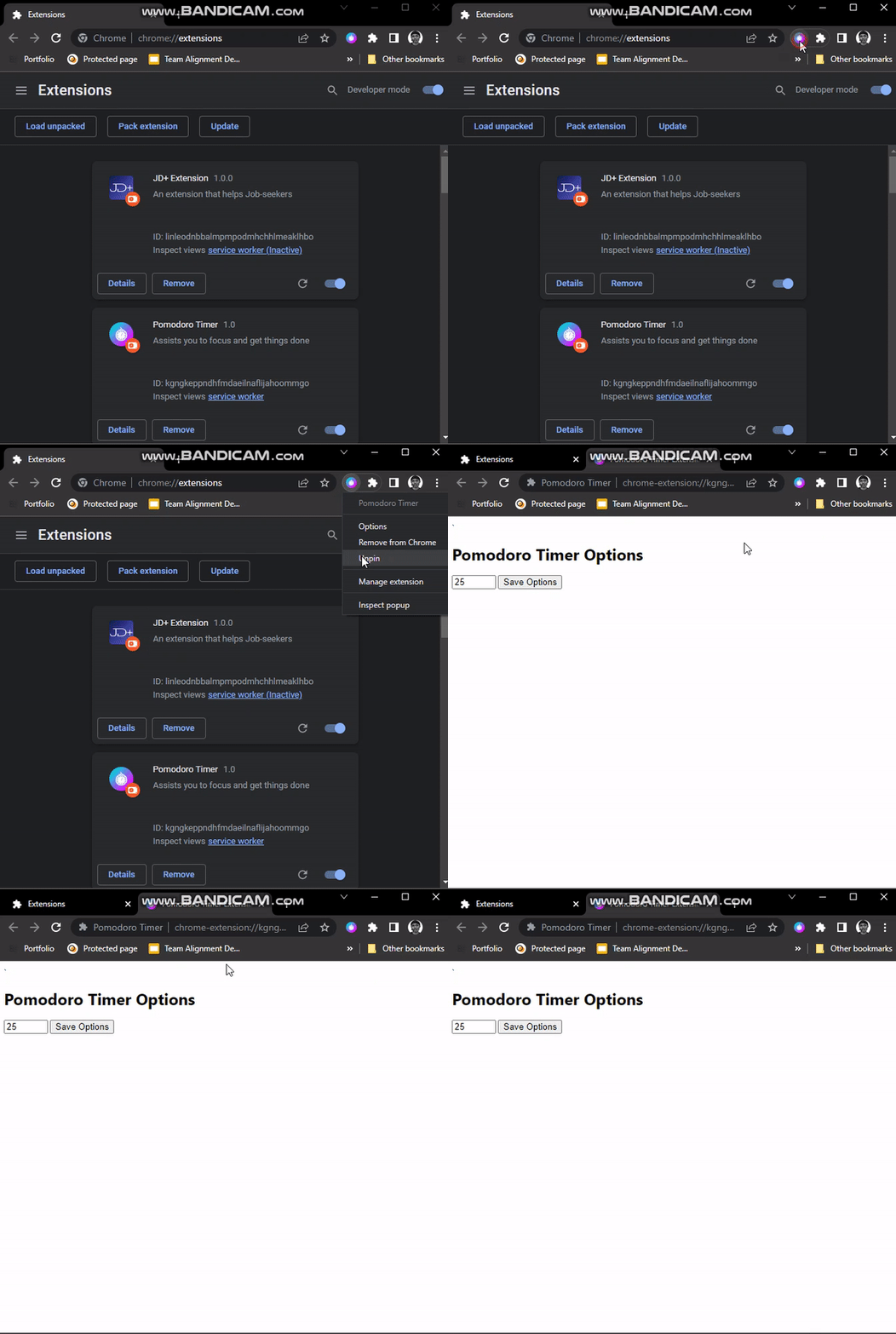
在 HTML 中,我們有一個最小值為 1 (1 分鐘)、最大值為 60 (60 分鐘)的數字 input 輸入框。value 屬性包含 25(25 分鐘)的預設計時器值。Save options 按鈕可以讓我們儲存選項。
在 options.js 中
// Add validation
const timeOption = document.getElementById('time-option')
timeOption.addEventListener('change', (event) => {
const val = event.target.value
if (val < 1 || val > 60) {
timeOption.value = 25
}
})
// Save Option
const saveBtn = document.getElementById('save-btn')
saveBtn.addEventListener('click', () => {
chrome.storage.local.set({
timeOption: timeOption.value,
timer: 0,
isRunning: false,
})
})
// Load Saved Option
chrome.storage.local.get(['timeOption'], (res) => {
timeOption.value = res.timeOption
})
在前面的 option.js 程式碼中:
- 我們正在驗證作為選項傳入的值:我們正在驗證作為選項傳入的值。它不應小於
1或大於60。 - 我們儲存新選項,重置計時器,並在計時器設定更改時將
isRunning引數設定為false。
在彈出視窗中顯示儲存的選項
現在讓我們通過後臺指令碼讀取已儲存的選項,並將其顯示在彈出頁面上。
在 background.js 中
// create an alarm to notify user when time is up
chrome.alarms.create("pomodoroTimer", {
periodInMinutes: 1 / 60
})
// alarm listener
chrome.alarms.onAlarm.addListener((alarm) => {
if (alarm.name === "pomodoroTimer") {
chrome.storage.local.get(["timer", "isRunning", "timeOption"], (res) => {
if (res.isRunning) {
let timer = res.timer + 1
let isRunning = true
// console.log(timer)
if(timer === 60 * res.timeOption) {
this.registration.showNotification('Pomodoro Timer', {
- body: "25 minutes has passed",
+ body: `${res.timeOption} minutes has passed!`,
icon: "icon.png"
})
timer = 0
isRunning = false
}
chrome.storage.local.set({
timer,
isRunning,
})
}
})
}
})
// storage to set and track timer variables
chrome.storage.local.get(["timer", "isRunning", "timeOption"], (res) => {
chrome.storage.local.set({
timer: "timer" in res ? res.timer : 0,
timeOption: "timeOption" in res ? res.timeOption : 25,
isRunning: "isRunning" in res ? res.isRunning : false,
})
})
在 popup.js 中
// array to store tasks
let tasks = [];
const time = document.getElementById("time");
// Update time every 1sec
function updateTime() {
chrome.storage.local.get(["timer", "timeOption"], (res) => {
const time = document.getElementById("time")
// get no. of minutes & secs
const minutes = `${ res.timeOption - Math.ceil(res.timer / 60)}`.padStart(2, "0");
let seconds = "00";
if (res.timer % 60 != 0) {
seconds = `${60 -res.timer % 60}`.padStart(2, "0");
}
// show minutes & secs on UI
time.textContent = `${minutes}:${seconds}`
})
}
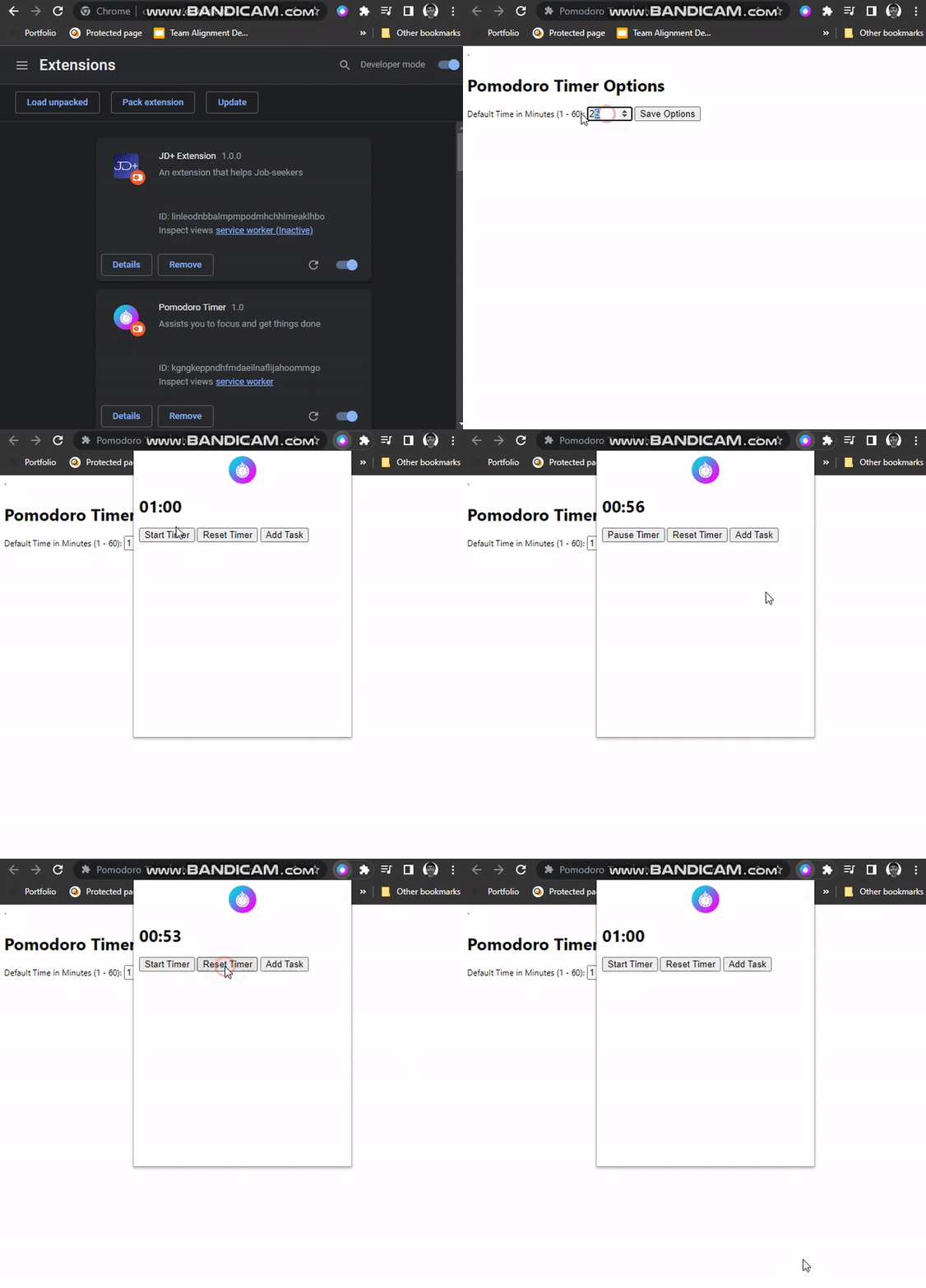
如果通過設定選項來測試擴充套件,就會在 popup 頁面上看到新值。
樣式
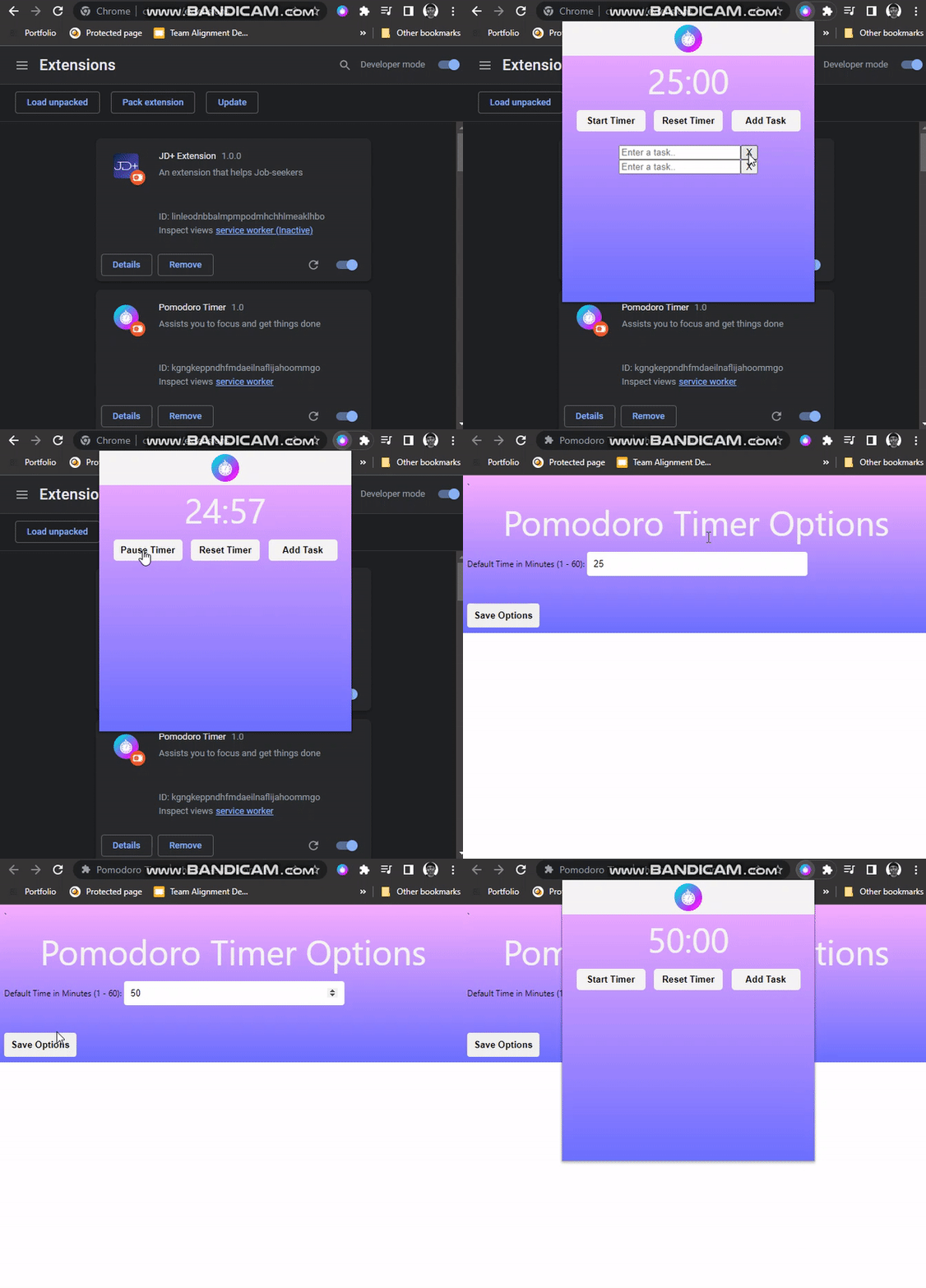
最後,讓我們來設計擴充套件的樣式。複製並貼上下面的程式碼。
在 popup.css 中
body {
height: 400px;
width: 350px;
background: hsla(238, 100%, 71%, 1);
background: linear-gradient(
90deg,
hsla(238, 100%, 71%, 1) 0%,
hsla(295, 100%, 84%, 1) 100%
);
background: -moz-linear-gradient(
90deg,
hsla(238, 100%, 71%, 1) 0%,
hsla(295, 100%, 84%, 1) 100%
);
background: -webkit-linear-gradient(
90deg,
hsla(238, 100%, 71%, 1) 0%,
hsla(295, 100%, 84%, 1) 100%
);
filter: progid: DXImageTransform.Microsoft.gradient( startColorstr="#696EFF", endColorstr="#F8ACFF", GradientType=1 );
}
.header {
display: flex;
justify-content: center;
height: 40px;
background-color: whitesmoke;
margin: -8px;
padding: 5px;
}
#time {
text-align: center;
font-size: 50px;
margin: 10px;
font-weight: normal;
color: whitesmoke;
}
#btn-container {
display: flex;
justify-content: space-evenly;
}
#btn-container > button {
color: black;
background-color: whitesmoke;
border: none;
outline: none;
border-radius: 5px;
padding: 8px;
font-weight: bold;
width: 100px;
cursor: pointer;
}
#task-container {
display: flex;
flex-direction: column;
align-items: center;
padding: 20px;
}
.task-input {
outline: none;
border: none;
border-radius: 4px;
margin: 5px;
padding: 5px 10px 5px 10px;
width: 250px;
}
.task-delete {
outline: none;
border: none;
height: 25px;
width: 25px;
border-radius: 4px;
color: indianred;
cursor: pointer;
font-weight: 700;
}
在 options.css 中
body {
background: hsla(238, 100%, 71%, 1) no-repeat;
background: linear-gradient(
90deg,
hsla(238, 100%, 71%, 1) 0%,
hsla(295, 100%, 84%, 1) 100%
) no-repeat;
background: -moz-linear-gradient(
90deg,
hsla(238, 100%, 71%, 1) 0%,
hsla(295, 100%, 84%, 1) 100%
) no-repeat;
background: -webkit-linear-gradient(
90deg,
hsla(238, 100%, 71%, 1) 0%,
hsla(295, 100%, 84%, 1) 100%
) no-repeat;
filter: progid: DXImageTransform.Microsoft.gradient( startColorstr="#696EFF", endColorstr="#F8ACFF", GradientType=1 );
}
h1 {
color: whitesmoke;
text-align: center;
font-size: 50px;
margin: 10px;
font-weight: normal;
}
h2 {
font-weight: normal;
color: whitesmoke;
}
#time-option {
outline: none;
border: none;
width: 300px;
border-radius: 4px;
padding: 10px;
}
#save-btn {
display: block;
margin-top: 40px;
border: none;
outline: none;
border-radius: 4px;
padding: 10px;
color: black;
font-weight: bold;
cursor: pointer;
}
小結
Chrome 瀏覽器擴充套件新手入門系列到此結束。希望它能幫助你瞭解構建 Chrome 擴充套件的基本概念。我鼓勵你嘗試構建自己的專案,甚至在此專案的基礎上新增更多功能。祝你學習順利。


評論留言