
你還在為古騰堡感到困惑嗎?或者您是那些堅信區塊編輯器的潛力並想知道使用區塊編輯器可以將他們的創造力推到多遠的人中的一員?
無論您屬於哪種型別的使用者,古騰堡都會留下來,這篇文章將讓您深入瞭解 WordPress 塊編輯器幕後發生的事情。但這還不是全部!
在我們之前的教學中我們提供了對Gutenberg區塊開發的一般介紹之後,本文超越了基礎知識,介紹了更高階的區塊型別。這些塊被稱為動態區塊。
今天,您將瞭解什麼是動態區塊、它們是如何工作的,以及從頭開始建立動態區塊所需瞭解的一切。
那麼,什麼是Gutenberg動態區塊,靜態區塊和動態區塊之間的主要區別是什麼?
什麼是動態區塊?一個例子
使用靜態區塊時,使用者在編輯文章或頁面時手動新增內容,而使用動態區塊時,內容會在頁面載入時動態載入和處理。使用動態區塊,區塊內容從資料庫中提取並按原樣顯示或由任何型別的資料操作產生。
讓我們用一個例子來解釋一下。假設您要建立一組巢狀區塊,顯示文章作者詳細資訊以及來自同一作者的最新文章的選擇。
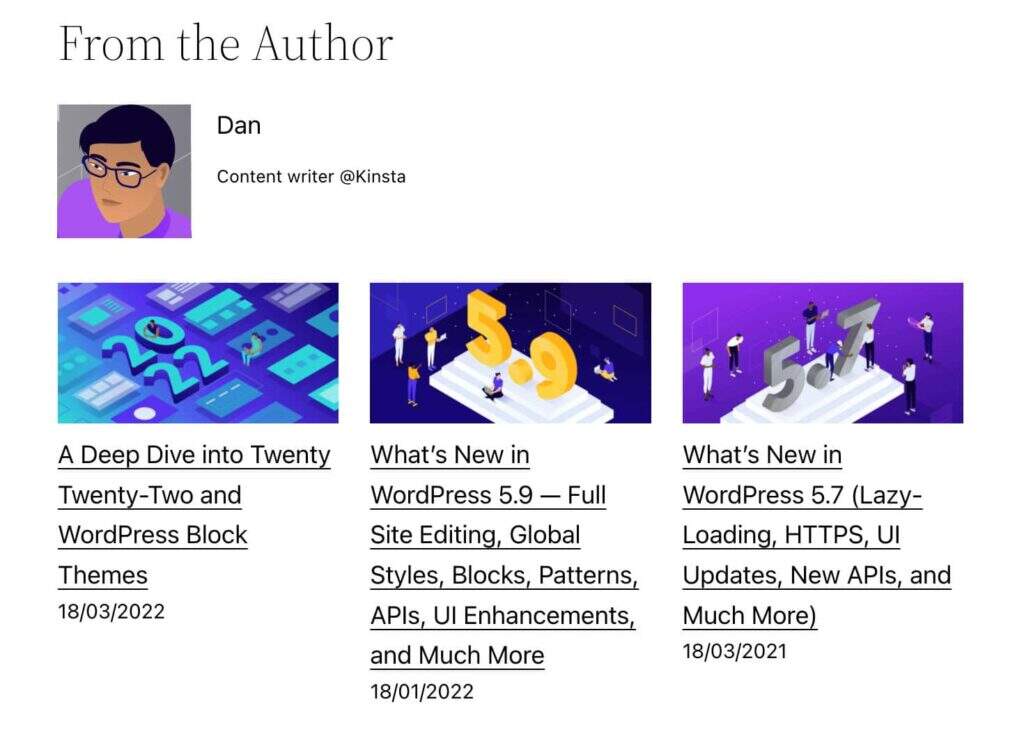
包括文章作者和最新文章組區塊
作為Gutenberg使用者,您可以使用以下區塊:
- 標題核心區塊
- 文章作者核心區塊
- 最新文章核心區塊
您還可以建立一個包含這些區塊的組,並將該組新增到可重複使用的區塊中以供將來使用。
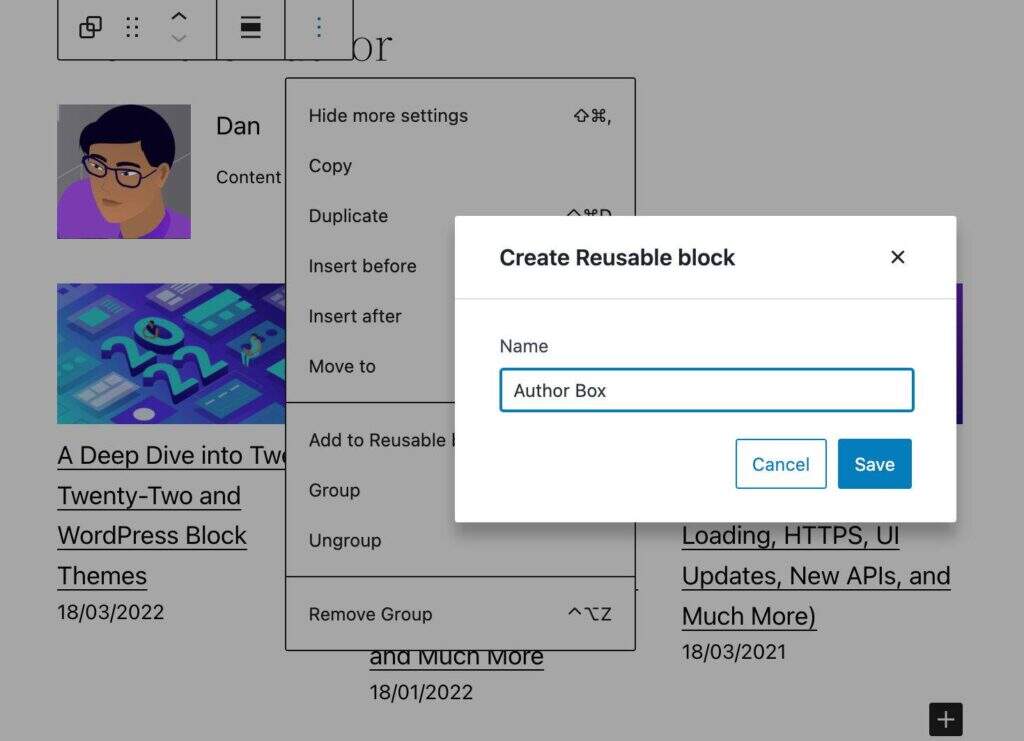
將組區塊新增到可重用區塊
這很簡單,不是嗎?您可以建立一個動態區塊並將其新增到您的文章和頁面中。
從WordPress 5.9開始,區塊編輯器提供了90多個不同的區塊,您很可能會立即找到適合您的區塊。而且,如果您需要更多,請在WordPress外掛目錄中快速搜尋,您會發現很多免費外掛提供了額外的區塊。
但是,如果您是WordPress開發人員,或者您正計劃從事WordPress開發人員的職業怎麼辦?也許您有非常特定的需求,找不到您正在尋找的區塊,或者您只是想獲得新的專業技能。在這種情況下,您可能想學習如何建立動態區塊。
從開發人員的角度來看Gutenberg動態區塊
動態區塊有兩個主要用例。
第一個用例是當包含區塊的頁面尚未更新時,您需要更新區塊的內容。例如,當區塊包含最新文章或評論的列表時會發生這種情況,並且通常每當區塊的內容是使用從資料庫檢索的資料動態生成時。
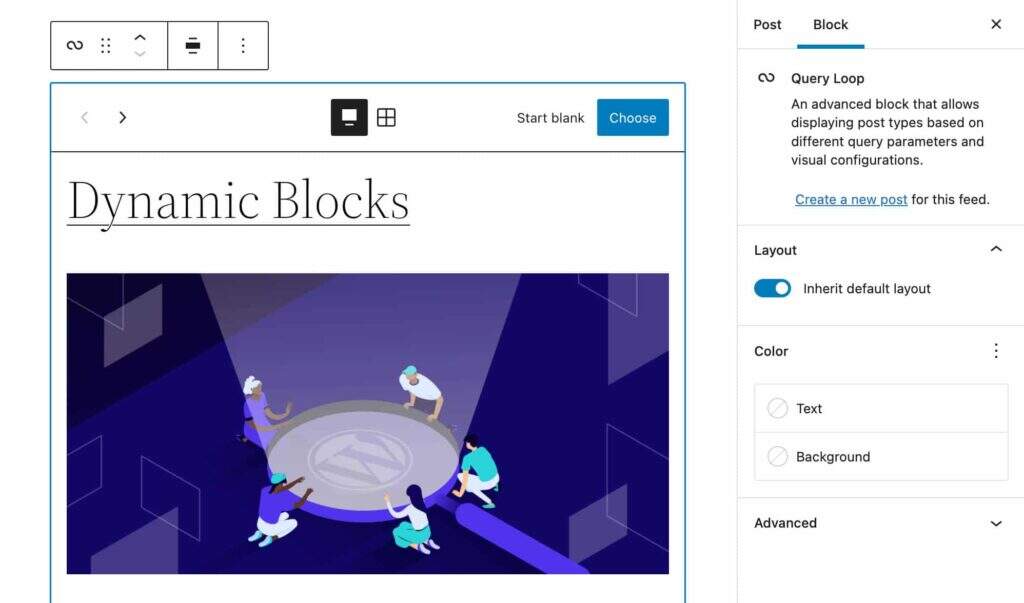
新增查詢迴圈區塊
第二個用例是需要立即在前端顯示對區塊程式碼的更新。使用動態區塊而不是靜態區塊會導致更改立即應用於所有出現的區塊。
另一方面,如果您要更改由靜態區塊生成的HTML,使用者將看到一個無效對話方塊,直到該區塊的先前版本的每個例項都被刪除並替換為新版本,或者您將舊版本標記為不推薦使用的版本(另請參閱棄用和區塊驗證、棄用和遷移經驗)。
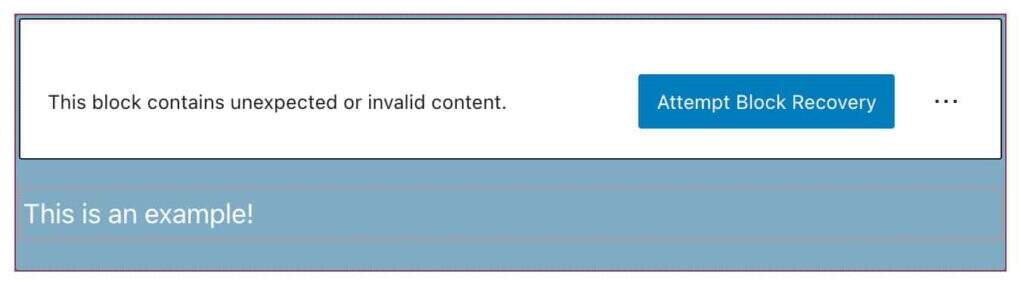
意外或無效的內容
話雖如此,在開始構建動態區塊之前,您需要了解一些概念。
應用程式狀態和資料儲存
Gutenberg是一個React SPA應用程式,Gutenberg中的所有內容都是一個React元件。編輯器中的文章標題、標題、段落、影象和任何HTML內容塊都是React元件,以及側邊欄和區塊工具欄控制元件。
在我們之前的文章中,我們只使用屬性來儲存資料。在本文中,我們將通過引入state的概念更進一步。
簡單地說,state物件是一個普通的JavaScript物件,用於包含有關元件的資訊。元件的state可以隨著時間而改變,並且任何時候改變,元件都會重新渲染。
與state物件類似,屬性是普通的JavaScript物件,用於儲存有關元件的資訊。但是props和state之間有一個關鍵區別:
props傳遞給元件(類似於函式引數),而狀態在元件內管理(類似於在函式中宣告的變數)。
您可以將狀態視為在給定時間點獲取的資料快照,應用程式儲存這些資料以控制元件的行為。例如,如果塊編輯器設定側邊欄開啟,則一條資訊將儲存在state物件的某個位置。
當資訊在單個元件內共享時,我們稱之為本地狀態。當資訊在應用程式內的元件之間共享時,我們稱之為應用程式狀態。
Application State與store的概念密切相關。根據Redux文件:
一個store儲存著應用程式的整個狀態樹。更改其內部狀態的唯一方法是在其上分派一個操作。
因此,Redux將應用程式狀態儲存在單個不可變物件樹(即儲存)中。物件樹只能通過使用actions和reducers建立新物件來更改。
在WordPress中,商店由WordPress資料模組管理。
Gutenberg中的模組化、包和資料儲存
Gutenberg儲存庫從頭開始構建在幾個可重用且獨立的模組上,這些模組組合在一起構建了編輯介面。這些模組也稱為包。
官方文件列出了兩種不同型別的包:
- 生產包組成了在瀏覽器中執行的生產程式碼。WordPress中有兩種型別的生產包:
- 帶有樣式表的包提供了正確執行的樣式表。
- 帶有資料儲存的包定義了資料儲存來處理它們的狀態。第三方外掛和主題可以使用帶有資料儲存的包來檢索和運算元據。
- 開發包用於開發模式。這些包包括用於linting、測試、構建等的工具。
在這裡,我們最感興趣的是帶有資料儲存的包,用於檢索和運算元據。
WordPress資料儲存
WordPress 資料模組建立在Redux之上,並共享三個Redux核心原則,儘管有一些關鍵區別。
Info Redux是JavaScript應用程式的狀態管理器。Redux的工作方式總結為三個基本原則:
- 單一事實來源:應用程式的全域性狀態儲存在單個儲存中的物件樹中。
- 狀態是隻讀的:改變狀態的唯一方法是發出一個動作,一個描述發生了什麼的物件。
- 使用純函式進行更改:要指定狀態樹如何通過操作進行轉換,您可以編寫純reducer。
官方文件提供了以下定義:
WordPress的資料模組用作管理外掛和 WordPress 本身的應用程式狀態的中心,提供工具來管理不同模組內和模組之間的資料。它被設計為一種用於組織和共享資料的模組化模式:簡單到足以滿足小型外掛的需求,同時可擴充套件以服務於複雜的單頁應用程式的需求。
預設情況下,Gutenberg在應用程式狀態中註冊多個資料儲存。這些商店中的每一個都有特定的名稱和用途:
core: WordPress核心資料core/annotations:註釋core/blocks:區塊型別資料core/block-editor:區塊編輯器的資料core/editor:後編輯的資料core/edit-post:編輯器的UI資料core/notices:通知資料core/nux: NUX(新使用者體驗)資料core/viewport:視口資料
通過這些商店,您將能夠訪問一大堆資料:
- 與當前文章相關的資料,例如文章標題、摘錄、類別和標籤、區塊等。
- 與使用者介面相關的資料,即開關是開啟還是關閉。
- 與整個WordPress安裝相關的資料,例如註冊分類法、文章型別、部落格標題、作者等。
這些儲存存在於全域性wp物件中。要訪問商店的狀態,您將使用select函式。
要檢視它是如何工作的,請建立一個新文章或頁面並啟動瀏覽器的檢查器。找到控制檯並輸入以下程式碼行:
wp.data.select("core")
結果將是一個物件,其中包含可用於從core資料儲存中獲取資料的函式列表。這些函式稱為選擇器並充當訪問狀態值的介面。
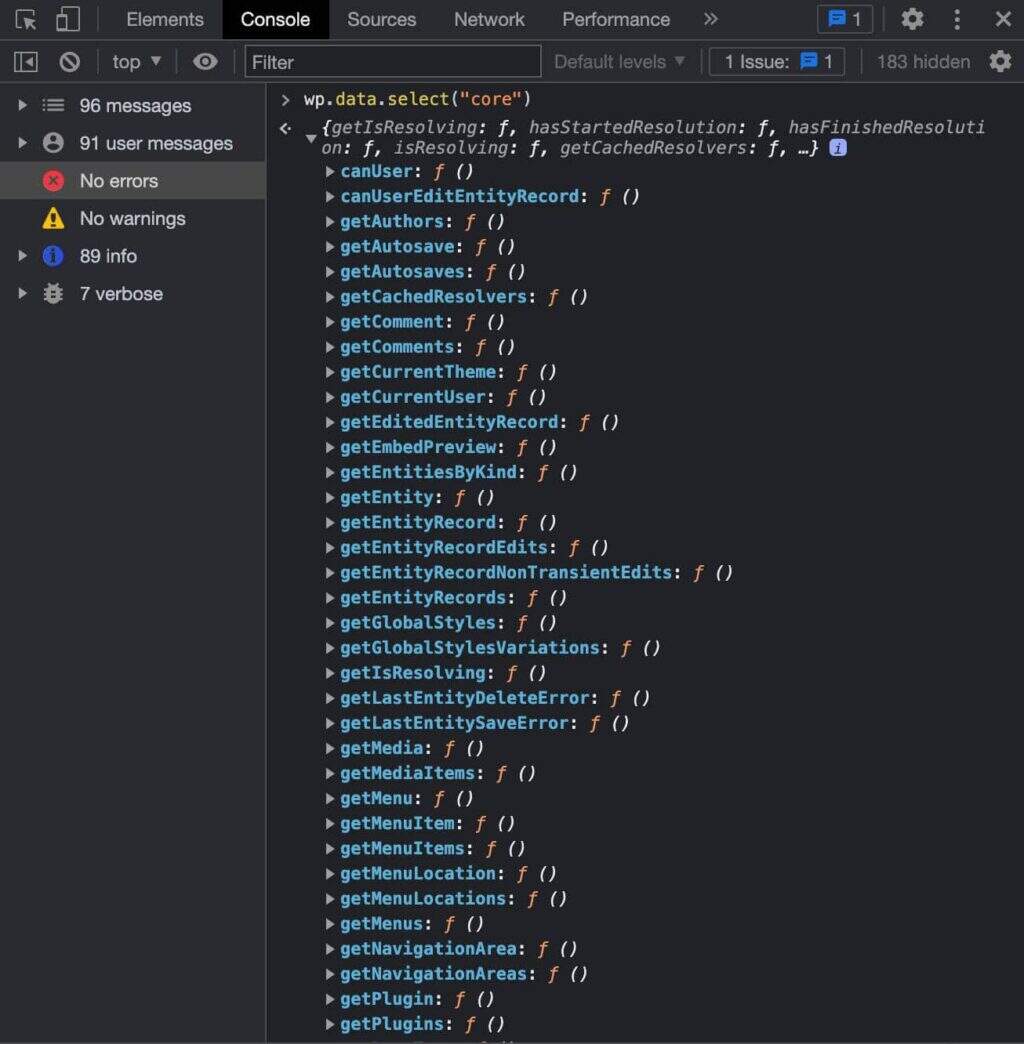
核心WordPress資料儲存物件
Info
selectors物件包括一組用於訪問和匯出狀態值的函式。選擇器是一個接受狀態和可選引數並從狀態返回一些值的函式。呼叫選擇器是從您的狀態中檢索資料的主要機制,並作為對原始資料的有用抽象,這些原始資料通常更容易更改並且不太容易用作規範化物件。(來源:Github)
WordPress資料儲存通常包含有關WordPress的資訊,選擇器是您獲取該資訊的方式。例如,getCurrentUser()返回當前使用者的詳細資訊:
wp.data.select("core").getCurrentUser()
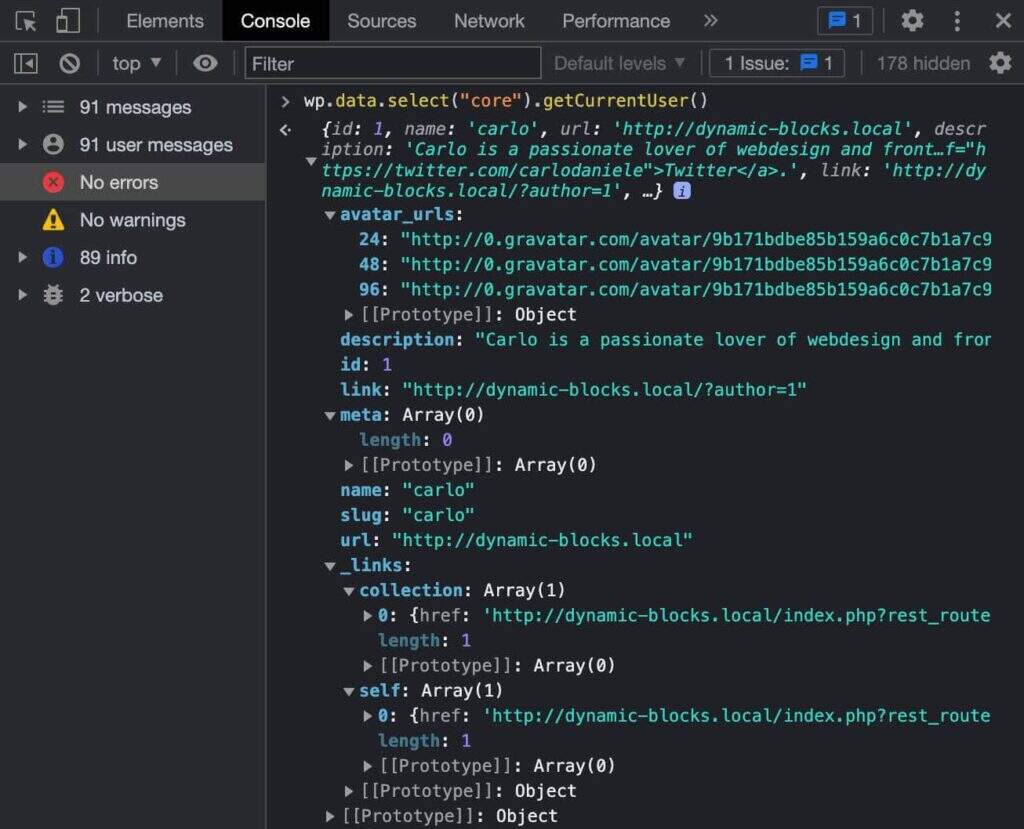
檢查getCurrentUser響應
另一個可用於從資料儲存中檢索使用者詳細資訊的選擇器是getUsers():
wp.data.select("core").getUsers()
下圖顯示了響應物件:
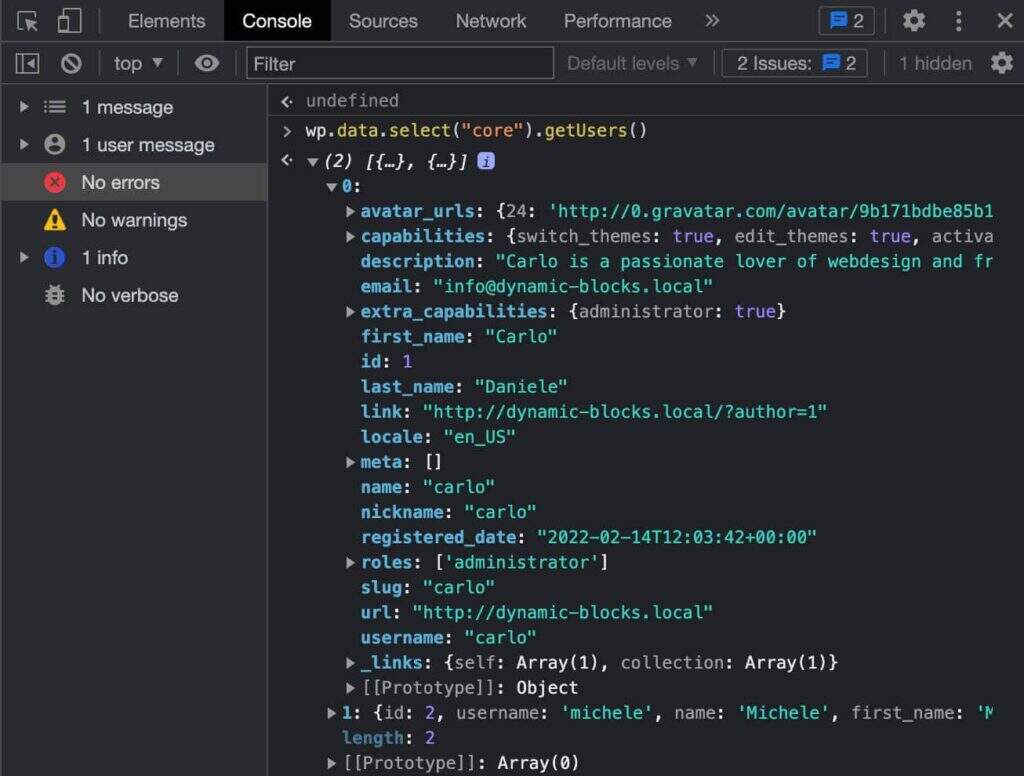
檢查getUsers響應
要獲取單個使用者的詳細資訊,您只需鍵入以下行:
wp.data.select("core").getUsers()[0]
使用相同的選擇器,您還可以檢索author分配了角色的站點使用者:
wp.data.select( 'core' ).getUsers({ who: 'authors' })
您還可以檢索已註冊的分類法:
wp.data.select("core").getTaxonomies()
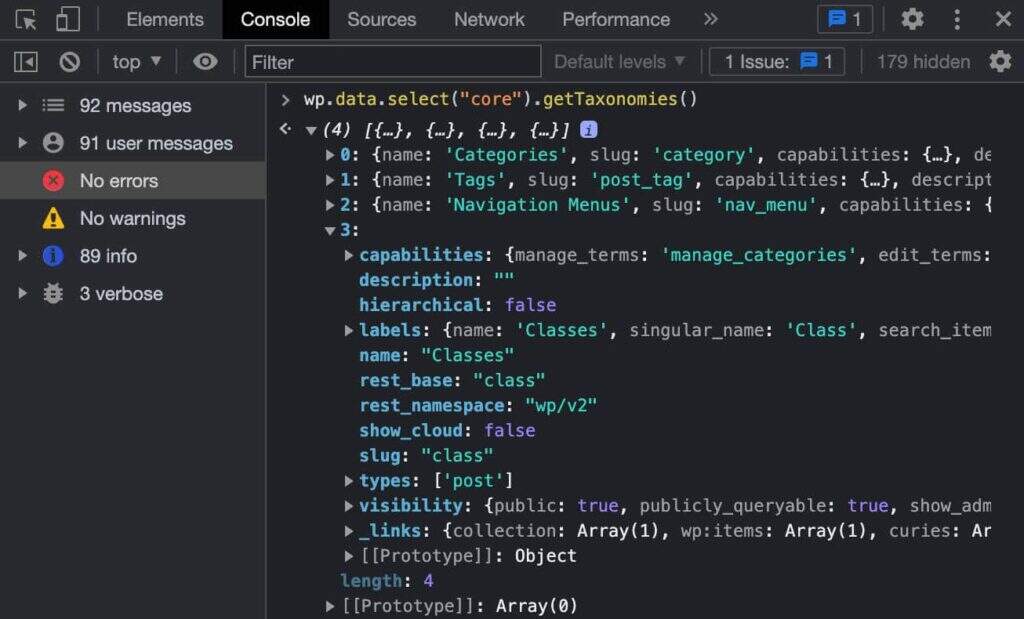
檢查getTaxonomies響應
已註冊的文章型別列表:
wp.data.select("core").getPostTypes()
或外掛列表:
wp.data.select("core").getPlugins()
現在讓我們嘗試訪問不同的資料儲存。為此,您仍將使用select函式,但提供不同的名稱空間。讓我們嘗試以下方法:
wp.data.select("core/edit-post")
現在您將獲得以下響應物件。
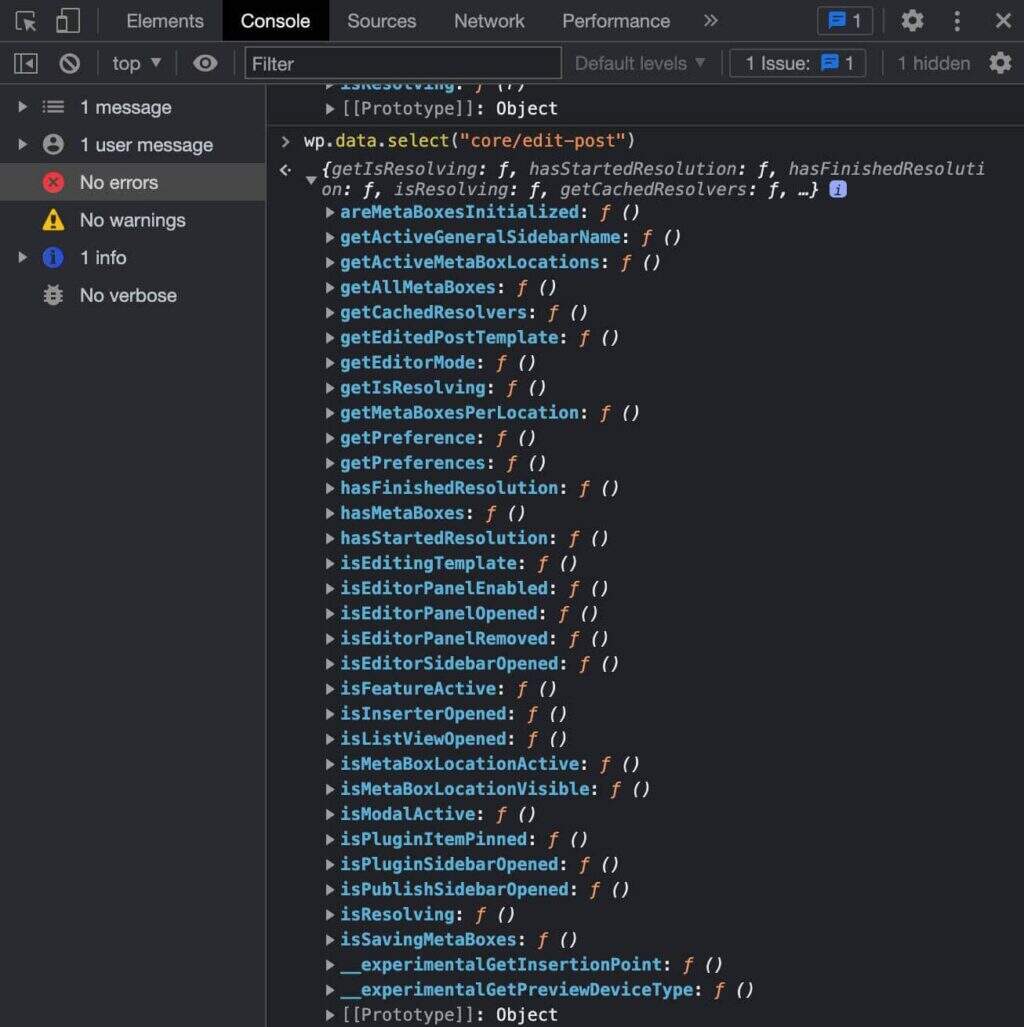
訪問編輯器的UI資料
如果您想知道設定側邊欄是否開啟,您可以使用isEditorSidebarOpened選擇器:
wp.data.select("core/edit-post").isEditorSidebarOpened()
如果側邊欄開啟,則此函式返回true:

側邊欄已開啟
如何訪問文章資料
您現在應該對如何訪問資料有了基本的瞭解。現在我們將仔細研究一個特定的選擇器getEntityRecords函式,它是提供對post資料的訪問許可權的選擇器。
在塊編輯器中,右鍵單擊並選擇Inspect。在控制檯選項卡中,複製並貼上以下行:
wp.data.select("core").getEntityRecords('postType', 'post')
這會向Rest API傳送請求,並返回與上次釋出的部落格文章相對應的記錄陣列。

getEntityRecords返回文章列表
Info 請注意,第一次將請求傳送到Rest API時,響應將一直持續為null到請求完成。所以,如果你得到null了,不用擔心,然後再試一次。
getEntityRecords接受三個引數:
kind字串:實體型別(即postType)。name字串:實體名稱(即post)。query?Object:可選術語查詢(即{author: 0})。
您可以使用arguments物件構建更具體的請求。
例如,您可以決定響應應該只包含指定類別的文章:
wp.data.select("core").getEntityRecords('postType', 'post', {categories: 3})
您還可以僅請求給定作者的文章:
wp.data.select("core").getEntityRecords('postType', 'post', {author: 2})
如果單擊返回的任何記錄getEntityRecords,您將獲得所選記錄的屬性列表:
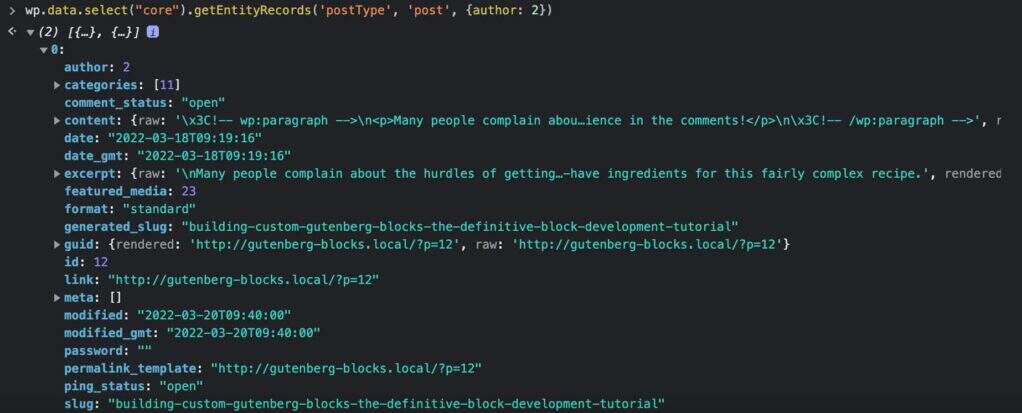
帶有getEntityRecords的示例API請求
如果您希望響應包含特色圖片,則需要在之前的請求中新增一個附加引數:
wp.data.select("core").getEntityRecords('postType', 'post', {author: 2, _embed: true})
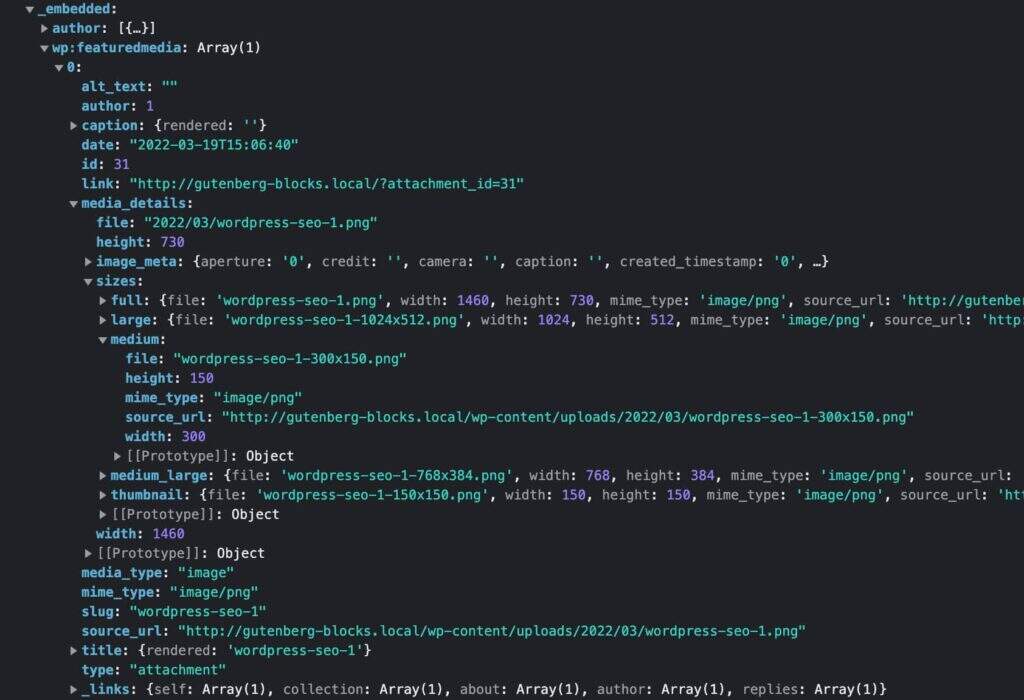
getEntityRecords響應中的特色影象詳細資訊
現在您應該對如何訪問WordPress資料儲存和檢索文章詳細資訊有了更好的瞭解。有關getEntityRecords選擇器的詳細檢視,另請參閱使用getEntityRecords在Gutenberg中請求資料。
如何建立動態區塊:示例專案
在我們長期的理論前提之後,我們可以繼續練習並使用我們在之前的區塊開發教學中介紹的工具建立一個動態區塊。
在那篇文章中,我們討論了:
這就是為什麼我們不會在本文中深入討論這些主題,但請隨時參考我們之前的指南以獲取任何其他資訊,或者只是為了複習。
設定JavaScript開發環境
讓我們從設定JavaScript開發環境開始。
安裝或更新Node.js
首先,安裝或更新Node.js。完成後,啟動命令列工具並執行以下命令:
node -v
您應該看到您的節點版本。
設定您的開發環境
接下來,您需要一個WordPress開發環境。
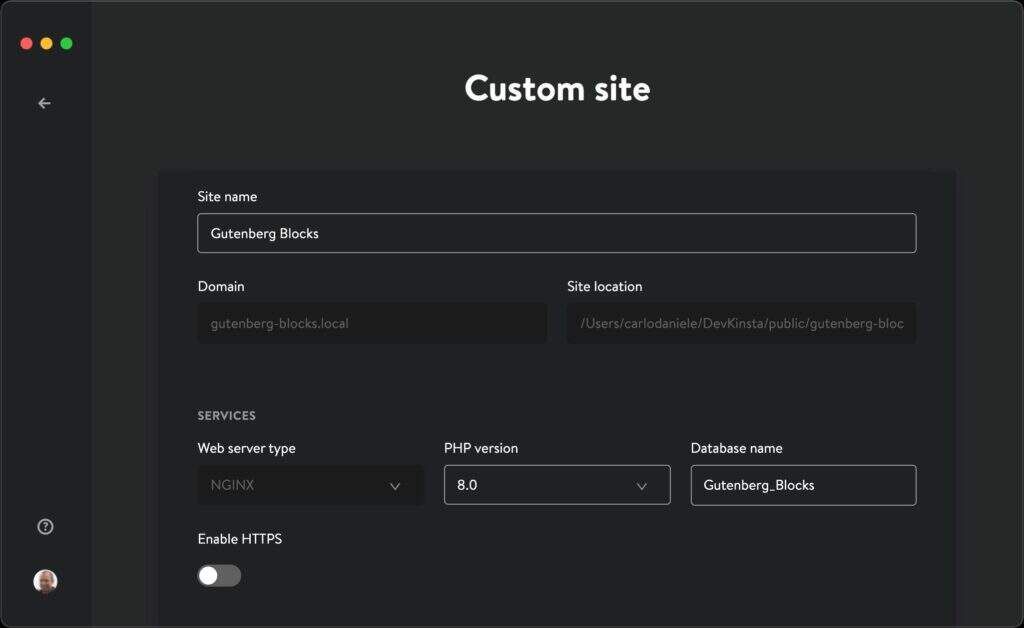
在開發環境中建立自定義站點
但是您仍然可以自由選擇任何您喜歡的WordPress本地開發環境,例如MAMP或XAMPP,甚至是官方的wp-env解決方案。
設定你的塊外掛
您現在需要的是一個入門區塊外掛。為了避免手動配置的所有麻煩,WordPress核心開發團隊釋出了@wordpress/create-block工具,這是用於建立Gutenberg區塊的官方零配置工具。
我們在上一篇文章@wordpress/create-block中進行了深入介紹,因此在這裡我們可以立即開始設定。
在命令列工具中,導航到/wp-content/plugins資料夾:

Mac OS資料夾中的新終端
在那裡,執行以下命令:
npx @wordpress/create-block
您現在已準備好安裝該@wordpress/create-block軟體包:
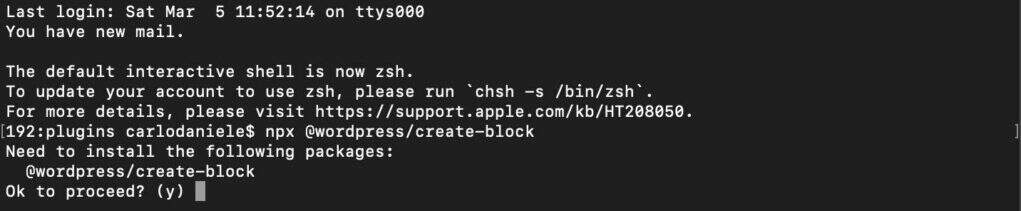
安裝@wordpress/create-block package
要確認,請鍵入y並按Enter。
這會以互動模式生成外掛的PHP、SCSS和JS檔案。
以下是我們將在示例中使用的詳細資訊。隨意根據您的喜好更改這些詳細資訊:
- 用於識別的區塊的slug(也是外掛和輸出資料夾名稱):author-plugin
- 區塊名稱的內部名稱空間(對您的產品來說是唯一的):author-box
- 區塊的顯示標題:Author box
- 您的區塊的簡短描述(可選):An example block for readers
- 破折號使您更容易識別您的區塊(可選):businessperson
- 幫助使用者瀏覽和發現您的區塊的類別名稱:widgets
- 外掛作者的名字(可選)。可以使用逗號列出多個作者:your name
- 外掛許可證的簡稱(可選):–
- 許可證全文的連結(可選):–
- 外掛當前版本號:0.1.0
點選回車後,它會下載並配置外掛。
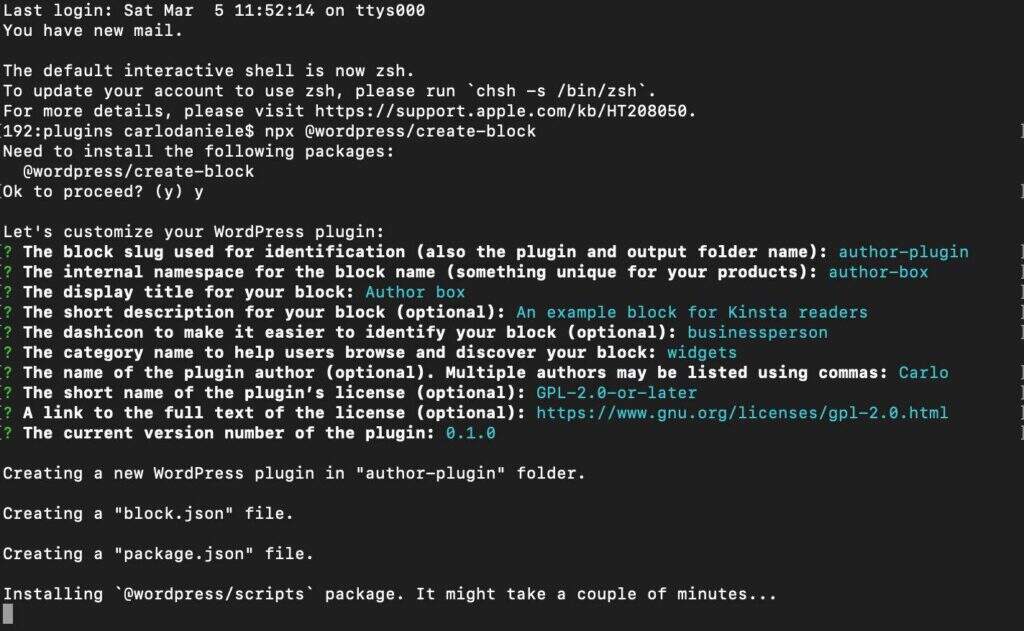
安裝區塊外掛
該過程可能需要幾分鐘。完成後,您應該會看到以下螢幕:

區塊在外掛資料夾中引導
您將看到可以從外掛目錄中執行的命令列表:
$ npm start– 開始構建以進行開發。$ npm run build– 構建生產程式碼。$ npm run format– 格式化檔案。$ npm run lint:css– Lint CSS檔案。$ npm run lint:js– Lint JavaScript檔案。$ npm run packages-update– 將WordPress軟體包更新到最新版本。
好的,現在使用以下命令移動到外掛目錄:
cd author-plugin
並開始您的開發構建:
npm start
接下來,導航到WordPress儀表盤中的外掛螢幕並啟用Author box外掛:
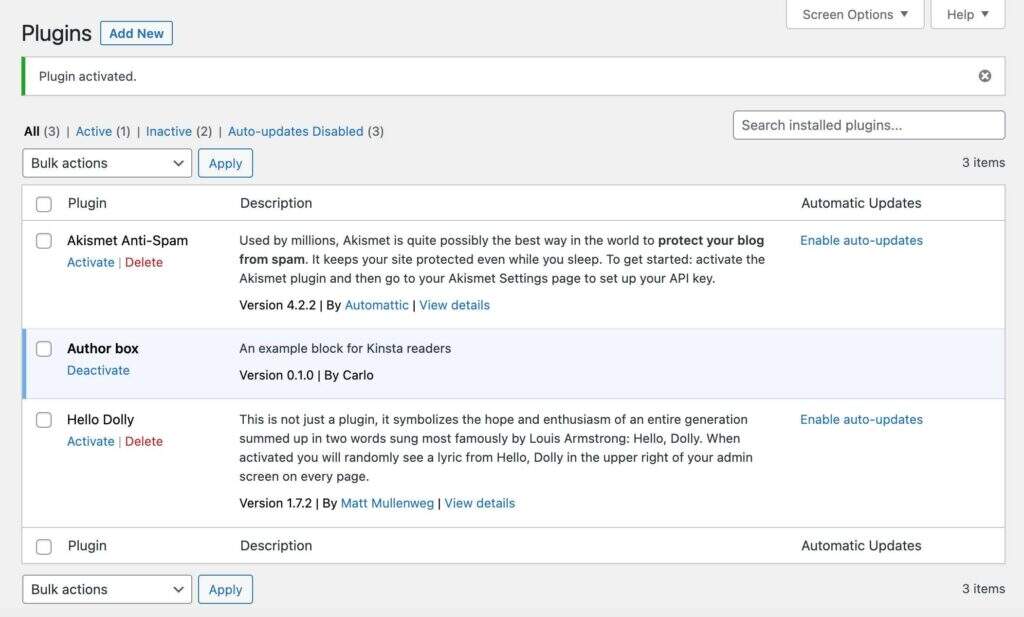
區塊外掛列在外掛管理頁面中
現在您可以檢查外掛是否正常工作。建立一個新文章並開始輸入/以啟動快速插入器:
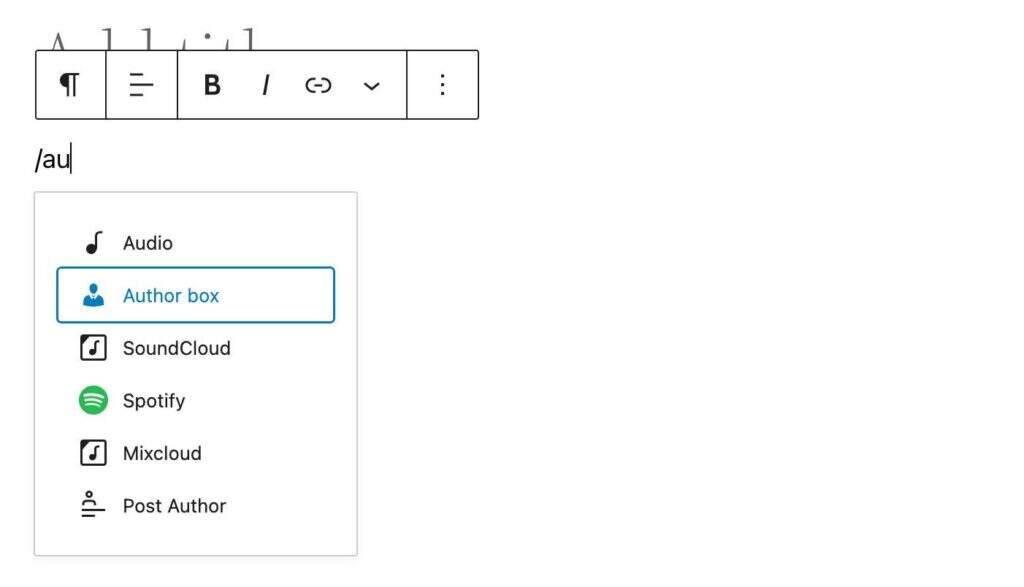
快速插入器中的區塊專案
您還可以在Widgets類別下的塊插入器中找到Author box區塊。選擇區塊以將其新增到編輯器畫布:
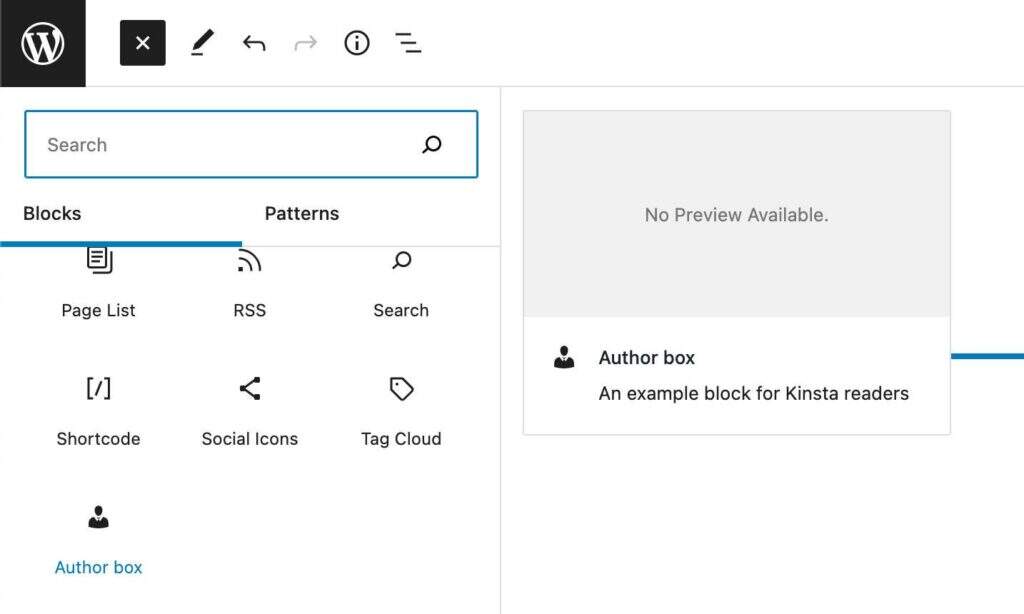
WordPress區塊插入器
你完成了。現在儲存文章並預覽頁面以檢查塊是否正確顯示。
區塊腳手架
我們在上一篇文章中介紹了區塊腳手架。因此,在這裡我們將只提供我們將為我們的示例修改的檔案的快速概述。
根資料夾根資料夾是您可以找到主要PHP檔案和幾個子資料夾的地方。
author-plugin.php預設情況下,@wordpress/create-block包提供以下PHP檔案:
/**
* Plugin Name:       Author box
* Description:       An example block for readers
* Requires at least: 5.8
* Requires PHP:      7.0
* Version:           0.1.0
* Author:            Carlo
* License:           GPL-2.0-or-later
* License URI:       https://www.gnu.org/licenses/gpl-2.0.html
* Text Domain:       author-plugin
*
* @package           author-box
*/
/**
* Registers the block using the metadata loaded from the `block.json` file.
* Behind the scenes, it registers also all assets so they can be enqueued
* through the block editor in the corresponding context.
*
* @see https://developer.wordpress.org/reference/functions/register_block_type/
*/
function author_box_author_plugin_block_init() {
register_block_type( __DIR__ . '/build' );
}
add_action( 'init', 'author_box_author_plugin_block_init' );
在標題中,您會注意到我們在設定時輸入的詳細資訊。
使用靜態區塊,大部分時間您將處理位於src資料夾中的JavaScript檔案。使用動態區塊,您將編寫PHP程式碼以在前端顯示區塊內容。
src資料夾
src資料夾是您的開發資料夾。在這裡,您將找到以下檔案:
- block.json
- index.js
- edit.js
- save.js
- editor.scss
- style.scss
block.json
block.json是您的元資料檔案。@wordpress/create-block生成以下block.json檔案:
{
"$schema": "https://schemas.wp.org/trunk/block.json",
"apiVersion": 2,
"name": "author-box/author-plugin",
"version": "0.1.0",
"title": "Author box",
"category": "widgets",
"icon": "businessperson",
"description": "An example block for Kinsta readers",
"supports": {
"html": false
},
"textdomain": "author-plugin",
"editorScript": "file:./index.js",
"editorStyle": "file:./index.css",
"style": "file:./style-index.css"
}
要更詳細地瞭解block.json檔案,請參閱我們之前的部落格文章。
index.js
index.js檔案是您在客戶端註冊塊型別的地方:
import { registerBlockType } from '@wordpress/blocks';
import './style.scss';
import Edit from './edit';
import save from './save';
registerBlockType('author-box/author-plugin', {
edit: Edit,
save,
});
edit.js
edit.js檔案用於構建在編輯器中呈現的塊介面:
import { __ } from '@wordpress/i18n';
import { useBlockProps } from '@wordpress/block-editor';
import './editor.scss';
export default function Edit() {
return (
<p {...useBlockProps()}>
{__('Author box – hello from the editor!', 'author-plugin')}
</p>
);
}
save.js
save.js檔案包含構建要儲存到資料庫中的塊內容的指令碼。我們不會在本教學中使用此檔案:
import { __ } from '@wordpress/i18n';
import { useBlockProps } from '@wordpress/block-editor';
export default function save() {
return (
<p {...useBlockProps.save()}>
{__('Author box – hello from the saved content!', 'author-plugin')}
</p>
);
}
在編輯器中構建要渲染的塊
在Visual Studio Code或您喜歡的任何程式碼編輯器中開啟您的專案。
如果您使用的是Visual Studio Code,請轉到Terminal -> New Terminal。這將在專案的根資料夾上啟動一個終端視窗。
在終端(或您最喜歡的命令列工具)中,輸入以下命令:
npm start
您現在正在開發模式下執行節點環境。

Visual Studio Code中的區塊外掛專案
從這裡開始,您將遵循兩條不同的路線。要在編輯器中呈現塊,您將在edit.js檔案中工作。要在前端渲染塊,您需要在主外掛檔案中編寫PHP程式碼。
現在捲起袖子,因為編碼開始了:
Info 在本文中,我們僅提供程式碼片段。完整程式碼可在Gist上找到。
在伺服器上註冊區塊
首先,您必須在伺服器上註冊塊並編寫PHP程式碼以從資料庫中檢索資料。
在author-plugin.php檔案中,您需要將第二個引數傳遞給register_block_type函式:
function author_box_author_plugin_block_init() {
register_block_type( __DIR__ . '/build', array(
'render_callback' => 'author_box_author_plugin_render_author_content'
) );
}
add_action( 'init', 'author_box_author_plugin_block_init' );
第二個引數是用於註冊塊型別的引數陣列(請參閱此處的可用引數的完整列表)。在上面的程式碼中,我們只提供了render_callback,它決定了在螢幕上渲染塊的回撥函式。
接下來,您將宣告該函式:
function author_box_author_plugin_render_author_content() {
return 'Hello World!';
}
儲存檔案,建立新文章或頁面,並將作者框區塊新增到編輯器畫布。
WordPress區塊插入器
區塊編輯器仍然顯示起始塊,因為我們還沒有更改edit.js檔案。
但是如果你在前端預覽文章,你會看到原來的區塊內容現在已經被“Hello World”字串替換了。
現在,由於前端呈現的HTML是由PHP檔案生成的,因此該函式不需要save返回任何內容。所以我們直接進入save.js檔案,修改程式碼如下:
export default function save() {
return null;
}
定義區塊屬性
現在您需要一個地方來儲存使用者設定。例如,要從資料庫中檢索的文章數量、是否顯示指定欄位等。為此,您將attributes在block.json檔案中定義數量。
例如,您可以讓使用者確定要包含在區塊中的文章數量、顯示特色圖片、日期、摘錄和/或隱藏/顯示作者個人資料圖片的選項。
以下是我們將用於構建示例區塊的完整屬性列表:
{
...
"attributes": {
"numberOfItems": {
"type": "number",
"default": 3
},
"columns": {
"type": "number",
"default": 1
},
"displayDate": {
"type": "boolean",
"default": true
},
"displayExcerpt": {
"type": "boolean",
"default": true
},
"displayThumbnail": {
"type": "boolean",
"default": true
},
"displayAuthorInfo": {
"type": "boolean",
"default": true
},
"showAvatar": {
"type": "boolean",
"default": true
},
"avatarSize": {
"type": "number",
"default": 48
},
"showBio": {
"type": "boolean",
"default": true
}
}
}
構建要在編輯器中渲染的區塊
選擇getEntityRecords器包含在@wordpress/data包中。要使用它,您需要useSelect從檔案中的該包中匯入鉤子edit.js:
import { useSelect } from '@wordpress/data';
Info
useSelect是一個自定義的反應鉤子,用於從基於useCallbackReact鉤子的註冊選擇器中檢索值。
接下來,將以下程式碼新增到Edit()函式中:
const posts = useSelect( ( select ) => {
return select( 'core' ).getEntityRecords( 'postType', 'post', {
'per_page': 3
});
});
在上面的程式碼中,我們硬編碼了文章的數量。但是您可能希望讓使用者能夠設定不同數量的文章。您可以為此使用屬性。
在您的block.json 中,您應該已經定義了一個numberOfItems屬性。您可以在Edit函式中使用它,如下所示:
export default function Edit( { attributes } ) {
const { numberOfItems } = attributes;
const posts = useSelect( ( select ) => {
return select( 'core' ).getEntityRecords( 'postType', 'post', {
'per_page': numberOfItems
});
});
console.log( posts );
return (
...
);
}
您還不會在螢幕上看到文章,但執行console.log並檢視瀏覽器檢查器控制檯中發生的情況:
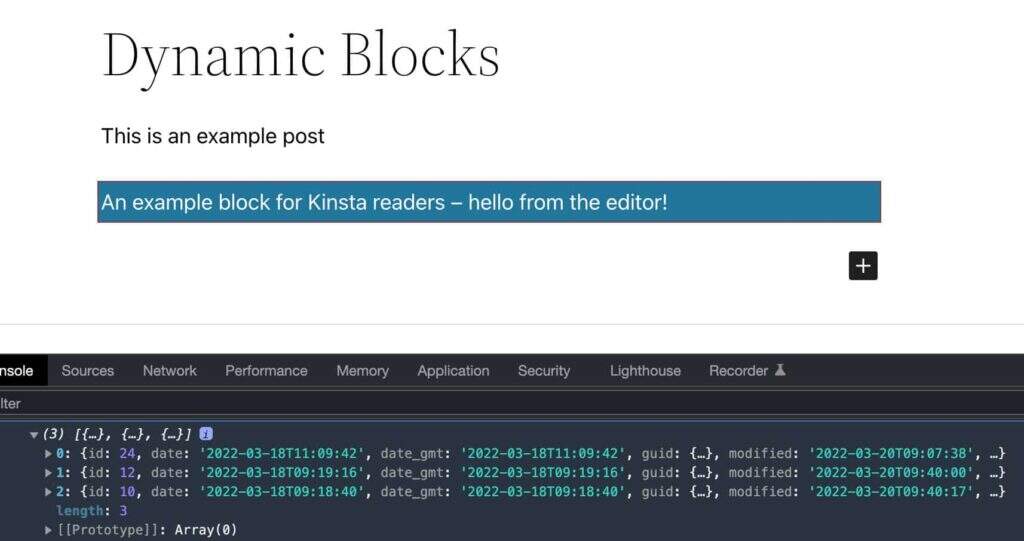
瀏覽器控制檯中的結果
useSelect可能需要兩個引數:一個內聯回撥和一個依賴陣列。兩者都返回回撥的記憶版本,僅當其中一個依賴項發生更改時才會更改。
因此,為了在每次numberOfItems屬性更改時重新獲取文章,您必須更改Edit函式,如下所示:
export default function Edit( { attributes } ) {
const { numberOfItems } = attributes;
const posts = useSelect(
( select ) => {
return select( 'core' ).getEntityRecords( 'postType', 'post', {
'per_page': numberOfItems
});
},
[ numberOfItems ]
);
console.log(posts);
return (
...
);
}
接下來,您必須呈現您的文章列表。為此,您可以使用內建的JavaScriptmap方法:
export default function Edit( { attributes } ) {
const { numberOfItems } = attributes;
const posts = useSelect(
( select ) => {
return select( 'core' ).getEntityRecords( 'postType', 'post', {
'per_page': numberOfItems
});
},
[ numberOfItems ]
);
console.log(posts);
return (
<div { ...useBlockProps() }>
<ul>
{ posts && posts.map( ( post ) => {
return (
<li key={ post.id }>
<h5>
<a href={ post.link }>
{
post.title.rendered ?
post.title.rendered :
__( 'Default title', 'author-plugin' )
}
</a>
</h5>
</li>
)
})}
</ul>
</div>
);
}
首先,它檢查陣列中是否至少有一個文章,然後執行迴圈。
Info
map()方法建立一個新陣列,其中填充了在呼叫陣列中的每個元素上呼叫提供的函式的結果——來源:MDN web docs。
請注意,當我們使用map帶有 React 元件的方法時,我們還使用key屬性將文章ID分配給當前列表項。
Info “key”是建立元素列表時需要包含的特殊字串屬性 – 來源: React Docs中的列表和鍵。
post.link和post.title.rendered分別呈現文章URL和標題。
下圖顯示了post物件屬性的完整列表。
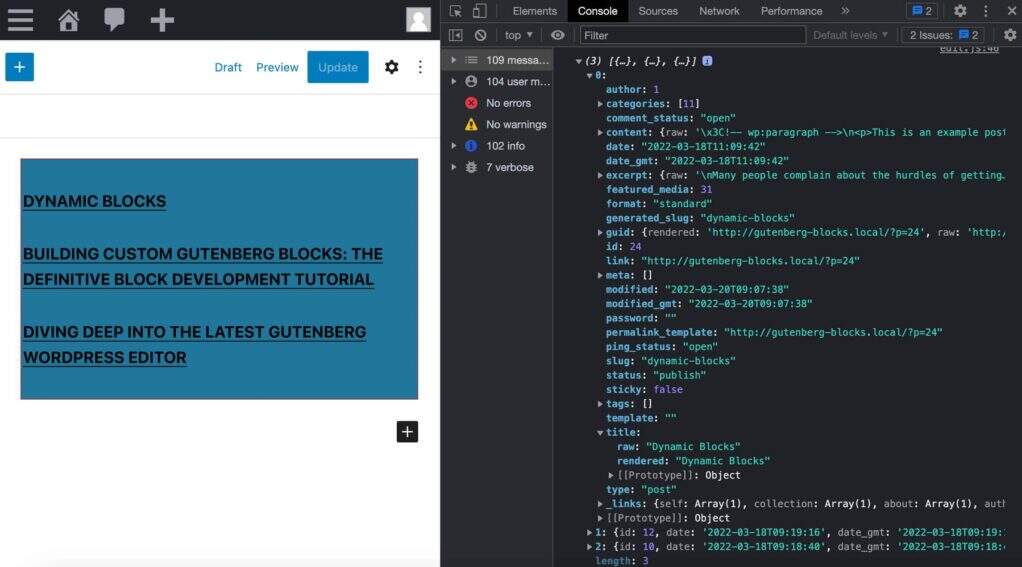
Post物件
上面的程式碼只是一個基本的使用getEntityRecords示例。現在是時候將我們的知識付諸實踐了。
假設您希望阻止您的區塊呈現使用者可能已新增到文章標題中的HTML標記。WordPress為此提供了一個RawHTML元件。
首先,您將從 @wordpress/element package中匯入元件:
import { RawHTML } from '@wordpress/element';
接下來,您將在一個RawHTML元素中包裝文章標題:
<div { ...useBlockProps() }>
<ul>
{ posts && posts.map((post) => {
return (
<li key={ post.id }>
<h5>
<a href={ post.link }>
{ post.title.rendered ? (
<RawHTML>
{ post.title.rendered }
</RawHTML>
) : (
__( 'Default title', 'author-plugin' )
)}
</a>
</h5>
</li>
)
})}
</ul>
</div>
就是這樣。現在將HTML標籤新增到您的文章標題並儲存文章。然後使用和不使用RawHTML測試你的程式碼,看看你的區塊的內容在螢幕上是如何變化的。
新增日期
WordPress提供了許多JavaScript函式來管理和格式化日期。要使用這些功能,您首先需要從您的edit.js檔案中的@wordpress/date package 匯入它們:
import { dateI18n, format, __experimentalGetSettings } from '@wordpress/date';
dateI18n:格式化日期,將其轉換為站點的語言環境。format: 格式化日期。__experimentalGetSettings:以WordPress常規設定中設定的格式顯示日期。
這些函式沒有記錄,但您會在幾個塊的原始碼中找到有用的示例。例如,請參閱latest-posts和post-date edit.js檔案。
現在新增displayDate屬性:
const { numberOfItems, displayDate } = attributes;
然後在<li>元素中新增以下程式碼:
{
displayDate && (
<time
className='wp-block-author-box-author-plugin__post-date'
dateTime={ format( 'c', post.date_gmt ) }
>
{ dateI18n(
__experimentalGetSettings().formats.date,
post.date_gmt
)}
</time>
)
}
這裡會發生什麼?
- 如果
displayDate是true,則使用time元素顯示日期。 dateTime屬性以一種允許的格式提供元素的時間和/或日期。dateI18n以本地化格式檢索日期。該函式的工作方式類似於PHPdate_i18nWordPress函式。
新增摘錄
現在應該很容易新增文章摘錄。首先,看一下瀏覽器檢查器中的excerpt屬性。您會看到實際內容儲存在excerpt.rendered.
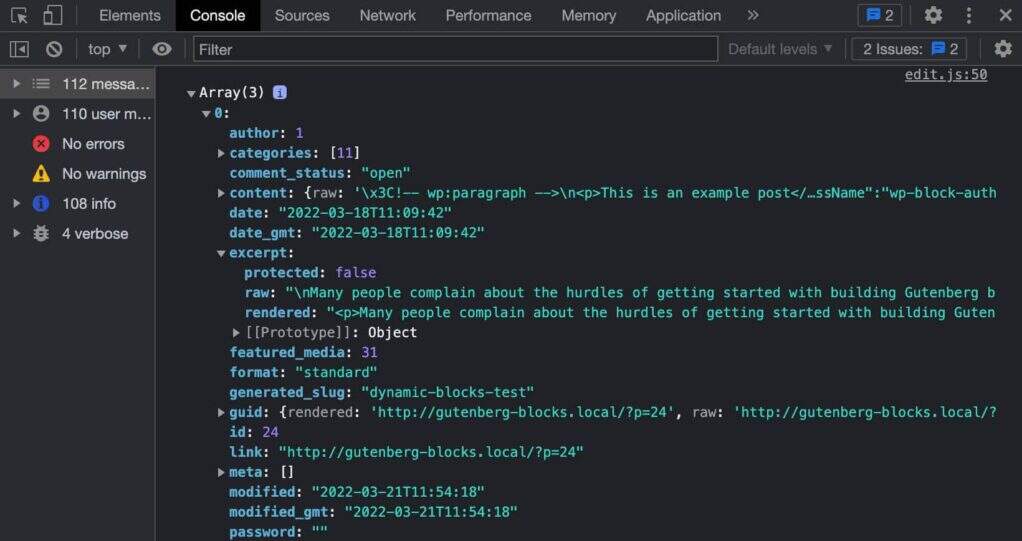
檢查Chrome DevTools中的文章摘錄
接下來,將displayExcerpt屬性新增到attributes物件:
const { numberOfItems, displayDate, displayExcerpt } = attributes;然後在函式的</li>結束標記前新增以下程式碼:Edit
{
displayExcerpt &&
post.excerpt.rendered && (
<p>
<RawHTML>
{ post.excerpt.rendered }
</RawHTML>
</p>
)
}
如果你不熟悉JavaScript,這裡和上面我們使用了Short Circuit Evaluation,如果所有條件都為真,則返回最後一個運算元的值(閱讀更多Inline If with Logical && Operator和Logical AND (&& ))。
Info 在JavaScript中,true && expression總是計算為expression,並且false && expression總是計算為false。
因此,如果條件為true,則緊隨其後的元素&&將出現在輸出中。如果是false,React將忽略並跳過它。來源: React Docs中的條件渲染。
最後,您可以再次測試您的程式碼。更改block.json檔案中的屬性值,看看在編輯器中會發生什麼。
新增特色圖片
現在您需要新增呈現特色影象的程式碼。開始將displayThumbnail屬性新增到attributes:
const {
numberOfItems,
displayDate,
displayExcerpt,
displayThumbnail
} = attributes;
現在您需要弄清楚特色影象的儲存位置。正如我們上面提到的,要獲得特色影象,您需要在查詢中新增一個新引數_embed。回到您的程式碼,更改查詢引數,如下所示:
const posts = useSelect(
( select ) => {
return select( 'core' ).getEntityRecords( 'postType', 'post', {
'per_page': numberOfItems,
'_embed': true
});
},
[ numberOfItems ]
);
在這裡,我們只是簡單地新增'_embed': true到引數陣列中。這提供了一個包含_embedded屬性的post物件,該屬性提供了顯示特色影象所需的影象詳細資訊。
現在您應該知道在哪裡可以找到影象詳細資訊。
getEntityRecords響應中的特色影象詳細資訊
您只需要新增在螢幕上呈現影象的程式碼:
{
displayThumbnail &&
post._embedded &&
post._embedded['wp:featuredmedia'] &&
post._embedded['wp:featuredmedia'][0] &&
<img
className='wp-block-author-box-author-plugin__post-thumbnail'
src={ post._embedded['wp:featuredmedia'][0].media_details.sizes.medium.source_url }
alt={ post._embedded['wp:featuredmedia'][0].alt_text }
/>
}
儲存檔案,切換到塊編輯器,檢查displayThumbnail屬性設定為時圖片是否正確顯示true。
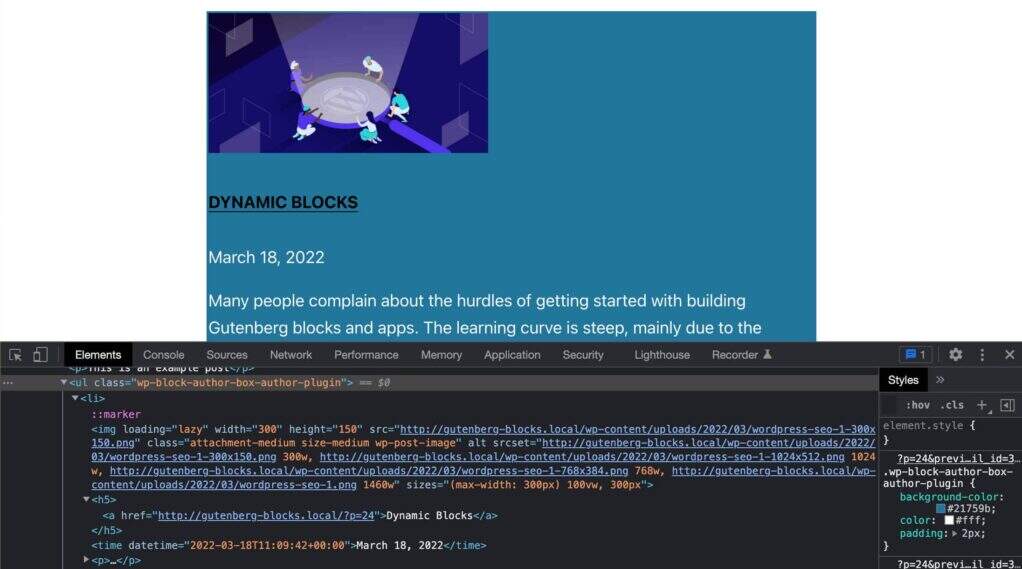
帶有特色圖片、日期和摘錄的文章列表
新增側邊欄控制元件
到目前為止,我們一直在使用block.json中設定的屬性預設值。但是從我們之前的文章中我們知道,我們可以定義事件處理程式,讓使用者能夠為每個屬性分配自定義值。
為此,您將向區塊設定側邊欄新增一組控制元件。在edit.js中,從相應的包中匯入以下元件:
import {
useBlockProps,
InspectorControls
} from '@wordpress/block-editor';
import {
PanelBody,
PanelRow,
QueryControls,
ToggleControl,
RangeControl
} from '@wordpress/components';
InspectorControls:包含影響整個區塊的側邊欄設定(參見GitHub)PanelBody:將可摺疊容器新增到設定側邊欄(參見GitHub 上)PanelRow:為側邊欄控制元件生成一個通用容器(參見GitHub)QueryControls:提供設定控制元件來構建查詢(參見GitHub)ToggleControl:為使用者提供一個切換按鈕來啟用/禁用特定選項(參見GitHub 上)RangeControl:用於從一系列增量值中進行選擇(參見GitHub 上)
接下來,您需要更新Edit函式以使用現在可用的控制元件。首先,修改Edit函式如下:
export default function Edit( { attributes, setAttributes } ) {
const {
numberOfItems,
columns,
displayExcerpt,
displayDate,
displayThumbnail
} = attributes;
const posts = useSelect(
( select ) => {
return select( 'core' ).getEntityRecords( 'postType', 'post', {
'per_page': numberOfItems,
'_embed': true
});
},
[ numberOfItems ]
);
...
}
注意setAttributes屬性傳遞給Edit函式。
現在您可以將相應的元素新增到您的JSX程式碼中:
return (
<>
<InspectorControls>
<PanelBody title={ __( 'Content Settings', 'author-plugin' ) }>
<PanelRow>
<QueryControls
numberOfItems={ numberOfItems }
onNumberOfItemsChange={ ( value ) =>
setAttributes( { numberOfItems: value } )
}
minItems={ 1 }
maxItems={ 10 }
/>
</PanelRow>
<PanelRow>
<RangeControl
label={ __( 'Number of Columns', 'author-plugin' ) }
value={ columns }
onChange={ ( value ) =>
setAttributes( { columns: value } )
}
min={ 1 }
max={ 4 }
required
/>
</PanelRow>
<PanelRow>
<ToggleControl
label={ __( 'Show Featured Image', 'author-plugin' ) }
checked={ displayThumbnail }
onChange={ () =>
setAttributes( { displayThumbnail: ! displayThumbnail } )
}
/>
</PanelRow>
<PanelRow>
<ToggleControl
label={ __( 'Show Date', 'author-plugin' ) }
checked={ displayDate }
onChange={ () =>
setAttributes( { displayDate: ! displayDate } )
}
/>
</PanelRow>
<PanelRow>
<ToggleControl
label={ __( 'Display Excerpt', 'author-plugin' ) }
checked={ displayExcerpt }
onChange={ () =>
setAttributes( { displayExcerpt: ! displayExcerpt } )
}
/>
</PanelRow>
</PanelBody>
</InspectorControls>
<div { ...useBlockProps() }>
...
</div>
</>
);
哇,這麼多程式碼,不是嗎?但這很容易理解。
這裡最值得你關注的元素屬性是onNumberOfItemsChangeinQueryControls和onChangeinRangeControl和ToggleControl。這些屬性設定了使使用者能夠自定義塊的外觀和/或行為所需的事件處理程式。
你還會注意到我們使用了<>和</>標籤,這是宣告React片段的簡短語法。
現在,儲存您的檔案,跳到編輯器中,然後重新整理頁面:
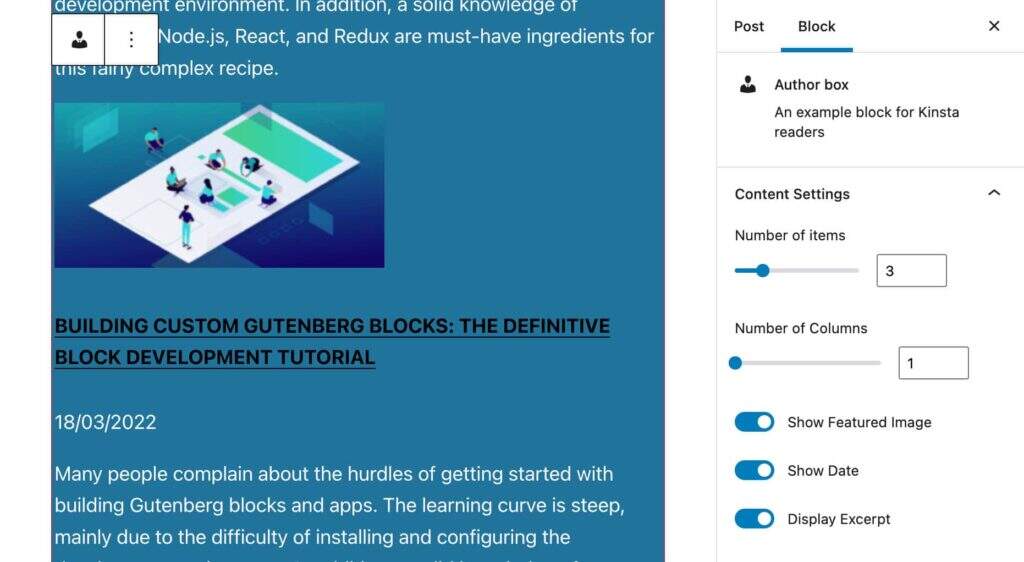
區塊設定
裡面都有嗎?然後讓我們繼續新增文章作者的詳細資訊。
查詢文章作者
正如我們上面提到的,我們的塊將顯示由與當前文章相同的作者撰寫的文章列表。
要獲取文章作者的ID,您將從資料儲存區core/editor匯入getCurrentPostAttribute selector:
wp.data.select( 'core/editor' ).getCurrentPostAttribute( 'author' )
getCurrentPostAttribute返回已儲存文章的屬性值。
獲得作者ID後,您可以更改查詢,如下所示:
const posts = useSelect(
( select ) => {
const _authorId = select( 'core/editor' ).getCurrentPostAttribute( 'author' );
return select( 'core' ).getEntityRecords( 'postType', 'post', {
'author': _authorId,
'per_page': numberOfItems,
'_embed': true
});
},
[ numberOfItems ]
);
使用此程式碼,您將獲得與當前文章相同作者的n文章列表。
現在您有了作者ID,您還可以使用它從資料庫中獲取其他資料。
顯示作者詳細資訊
由於我們沒有任何可用的文件,我們使用Post Author核心區塊中的程式碼作為參考。
要顯示作者詳細資訊,您首先需要匯入一個新的依賴項:
import { forEach } from 'lodash';
然後,在Edit函式中,attributes按如下方式更新物件:
const {
numberOfItems,
columns,
displayExcerpt,
displayDate,
displayThumbnail,
displayAuthorInfo,
showAvatar,
avatarSize,
showBio
} = attributes;
完成後,您將編輯上一節中看到的程式碼以檢索作者詳細資訊:
const { authorDetails, posts } = useSelect(
( select ) => {
const _authorId = select( 'core/editor' ).getCurrentPostAttribute( 'author' );
const authorDetails = _authorId ? select( 'core' ).getUser( _authorId ) : null;
const posts = select( 'core' ).getEntityRecords( 'postType', 'post', {
'author': _authorId,
'per_page': numberOfItems,
'_embed': true
});
return {
authorDetails: authorDetails,
posts: posts
};
},
[ numberOfItems ]
);
請注意,我們使用getUser選擇器來獲取作者詳細資訊。
接下來,您可能想要獲取作者的頭像。下面的程式碼構建了一個儲存頭像URL和大小的專案陣列:
const avatarSizes = [];
if ( authorDetails ) {
forEach( authorDetails.avatar_urls, ( url, size ) => {
avatarSizes.push( {
value: size,
label: `${ size } x ${ size }`,
} );
} );
}
然後,您將新增側邊欄面板和控制元件,以使使用者能夠自定義塊中的作者區域:
return (
<>
<InspectorControls>
<PanelBody title={ __( 'Author Info', 'author-plugin' ) }>
<PanelRow>
<ToggleControl
label={ __( 'Display Author Info', 'author-plugin' ) }
checked={ displayAuthorInfo }
onChange={ () =>
setAttributes( { displayAuthorInfo: ! displayAuthorInfo } )
}
/>
</PanelRow>
{ displayAuthorInfo && (
<>
<PanelRow>
<ToggleControl
label={ __( 'Show avatar' ) }
checked={ showAvatar }
onChange={ () =>
setAttributes( { showAvatar: ! showAvatar } )
}
/>
{ showAvatar && (
<SelectControl
label={ __( 'Avatar size' ) }
value={ avatarSize }
options={ avatarSizes }
onChange={ ( size ) => {
setAttributes( {
avatarSize: Number( size ),
} );
} }
/>
) }
</PanelRow>
<PanelRow>
<ToggleControl
label={ __( 'Show Bio', 'author-plugin' ) }
checked={ showBio }
onChange={ () =>
setAttributes( { showBio: ! showBio } )
}
/>
</PanelRow>
</>
) }
</PanelBody>
...
</InspectorControls>
...
</>
);
下圖顯示了更新的設定側邊欄:
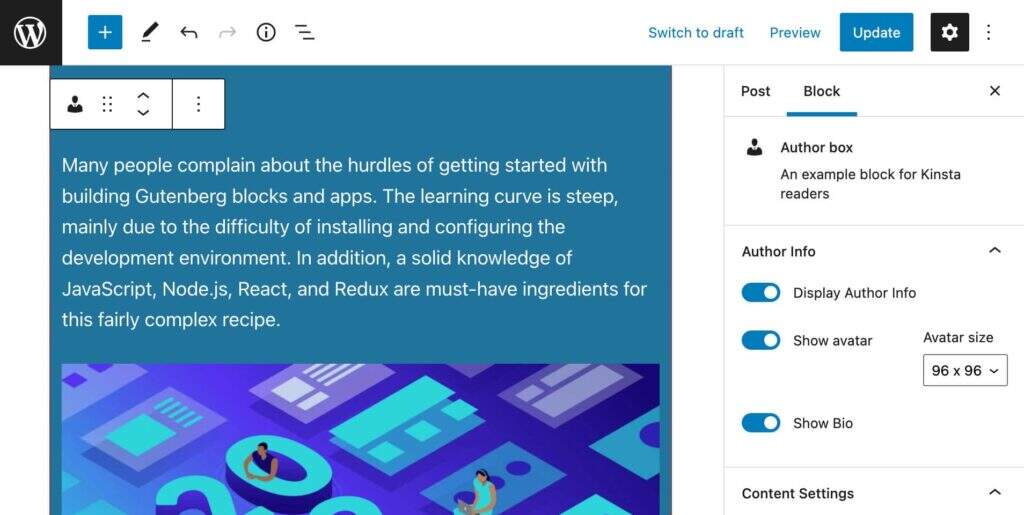
作者資訊設定面板
最後,您可以將作者部分新增到您的區塊中:
return (
<>
<InspectorControls>
...
</InspectorControls>
<div { ...useBlockProps() }>
{ displayAuthorInfo  && authorDetails && (
<div className="wp-block-author-box-author-plugin__author">
{ showAvatar && (
<div className="wp-block-author-box-author-plugin__avatar">
<img
width={ avatarSize }
src={
authorDetails.avatar_urls[
avatarSize
]
}
alt={ authorDetails.name }
/>
</div>
) }
<div className='wp-block-author-box-author-plugin__author-content'>
<p className='wp-block-author-box-author-plugin__name'>
{ authorDetails.name }
</p>
{ showBio &&
// https://developer.mozilla.org/en-US/docs/Web/JavaScript/Reference/Operators/Optional_chaining
authorDetails?.description &&
authorDetails.description.length > 0 && (
<p className='wp-block-author-box-author-plugin__description'>{ authorDetails.description }</p>
) }
</div>
</div>
)}
<ul>
...
</ul>
</div>
</>
);
下圖顯示了它在螢幕上的呈現方式。
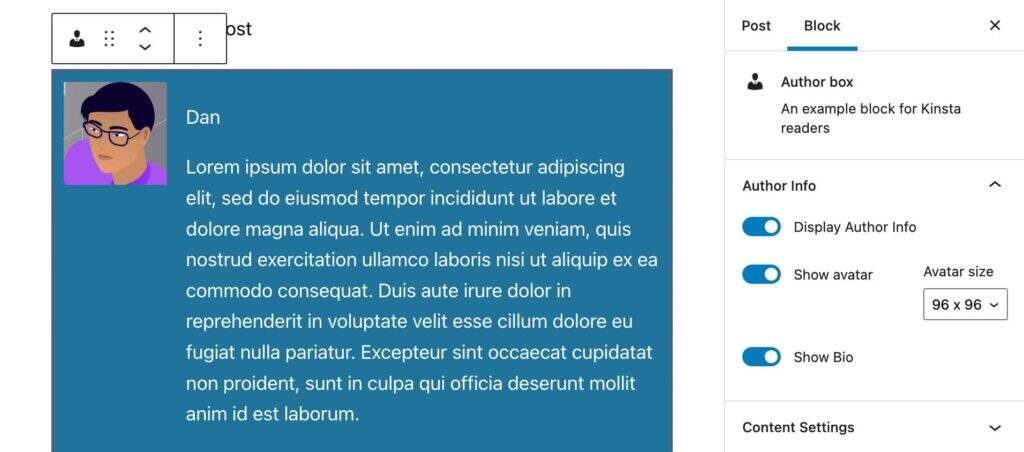
作者詳細資訊部分和資訊設定
現在儲存您的edit.js檔案並執行您的測試。您的區塊應包含不同的元素,具體取決於區塊設定。
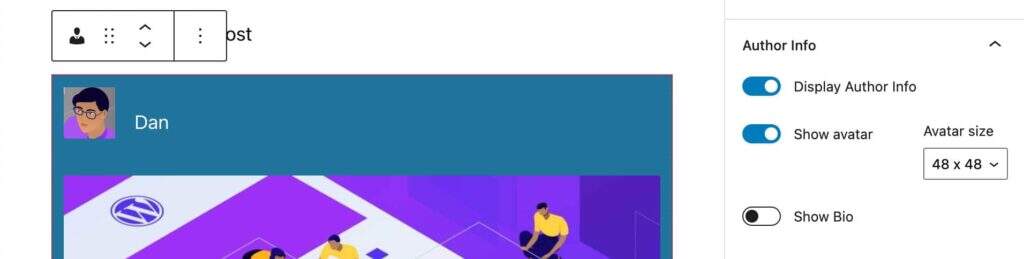
作者詳細資訊未顯示作者的簡歷
最後一件事仍然缺失:顯示文章的列數。
更改列數
為了讓使用者能夠在列中顯示文章預覽,我們在block.json檔案中定義了columns屬性。我們還在指令碼中包含了一個columns屬性,並建立了一個設定控制元件以允許使用者更改列數,儘管此更改目前沒有效果。
在上面的JSX程式碼中,您應該已經注意到我們為幾個元素新增了CSS類:
分配給作者部分中元素的類:
wp-block-author-box-author-plugin__authorwp-block-author-box-author-plugin__avatarwp-block-author-box-author-plugin__author-contentwp-block-author-box-author-plugin__namewp-block-author-box-author-plugin__description
分配給內容部分元素的類:
wp-block-author-box-author-plugin__post-itemswp-block-author-box-author-plugin__post-thumbnailwp-block-author-box-author-plugin__post-titlewp-block-author-box-author-plugin__post-datewp-block-author-box-author-plugin__post-excerpt
還缺一節課。該類的名稱將動態生成,以反映使用者設定的列數。
回到Edit.js檔案並修改ul元素如下:
<ul className={ `wp-block-author-box-author-plugin__post-items columns-${ columns }` }>
...
</ul>
我們根據模板文字語法新增了一個新類columns-${ columns },用於在字串中插入表示式。這樣,附加到ul元素的屬性將取決於使用者設定(例如columns-1、columns-2等)。
現在開啟style.scss檔案並將現有程式碼替換為以下內容:
.wp-block-author-box-author-plugin {
background-color: #21759b;
color: #fff;
padding: .6em;
ul.wp-block-author-box-author-plugin__post-items {
padding: 0;
list-style-type: none;
display: grid;
gap: .5em;
@for $i from 2 through 4 {
&.columns-#{ $i } {
grid-template-columns: repeat(#{ $i }, 1fr);
}
}
li {
list-style: none;
img.wp-block-author-box-author-plugin__post-thumbnail {
height: auto;
max-width: 100%;
}
}
}
}
.wp-block-author-box-author-plugin__author {
display: flex;
flex-wrap: wrap;
}
.wp-block-author-box-author-plugin__avatar {
margin-right: 1em;
}
.wp-block-author-box-author-plugin__author-content {
flex-basis: 0;
flex-grow: 1;
}
我們不會深入研究該程式碼,超出了本文的範圍。但是,如果您想深入瞭解,可以參考以下資源:
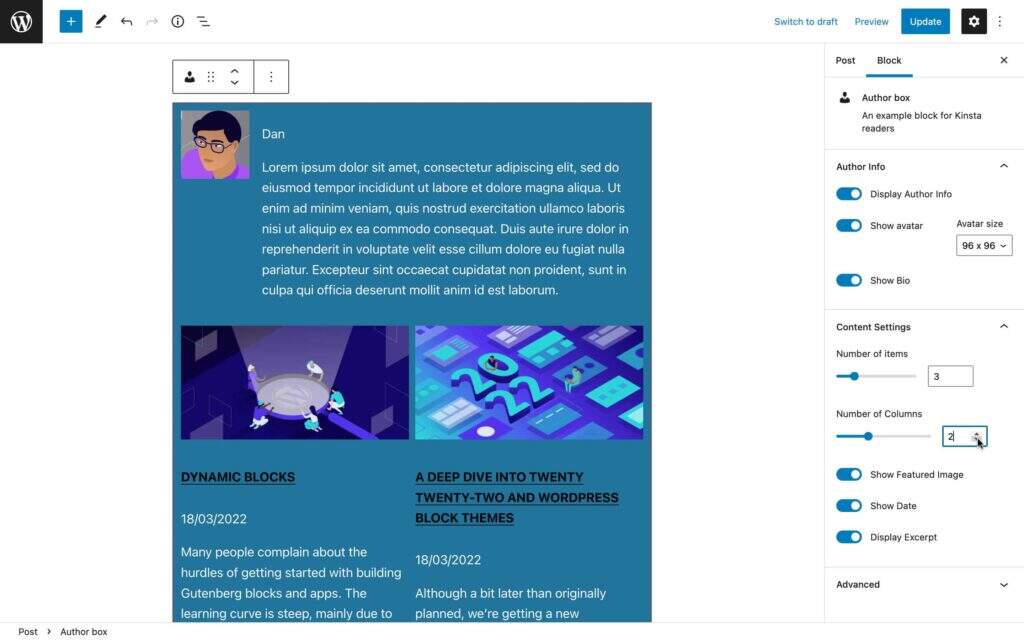
編輯器中的作者區塊
這就是在編輯器中渲染區塊的過程。
構建要在頁面上呈現的區塊
現在在編輯器中渲染區塊的程式碼已經完成,我們可以繼續構建區塊以在前端渲染。
正如我們前面提到的,當涉及到動態區塊時,外掛檔案負責生成要在前端呈現的HTML。
因此,開啟外掛的主檔案(在我們的示例中為author-plugin.php)。
首先要做的是使塊屬性可用於WordPress PHP函式。在您的PHP檔案中,按如下方式更改函式定義:
function author_box_author_plugin_render_author_content( $attr ) {
...
}
現在您可以使用WordPress函式來檢索和運算元據。例如,您可以使用get_posts來檢索最新的部落格文章(瞭解更多get_posts函式資訊):
function author_box_author_plugin_render_author_content( $attr ) {
$args = array(
'numberposts'	=> $attr['numberOfItems'],
);
$my_posts = get_posts( $args );
if( ! empty( $my_posts ) ){
$output = '<ul>';
foreach ( $my_posts as $p ){
$output .= '<li><a href="' . esc_url( get_permalink( $p->ID ) ) . '">'
. $p->post_title . '</a></li>';
}
$output .= '</ul>';
}
return $output ?? '<strong>Sorry. No posts matching your criteria!</strong>';
}
上面的函式從您的WordPress資料庫中檢索最新的numberOfItems部落格文章(預設post_type設定為post)並返回一個物件陣列$post。然後它遍歷陣列以構建列表項。
如果您檢查HTML輸出,您會注意到它是一個簡單的文章列表,如下圖所示:
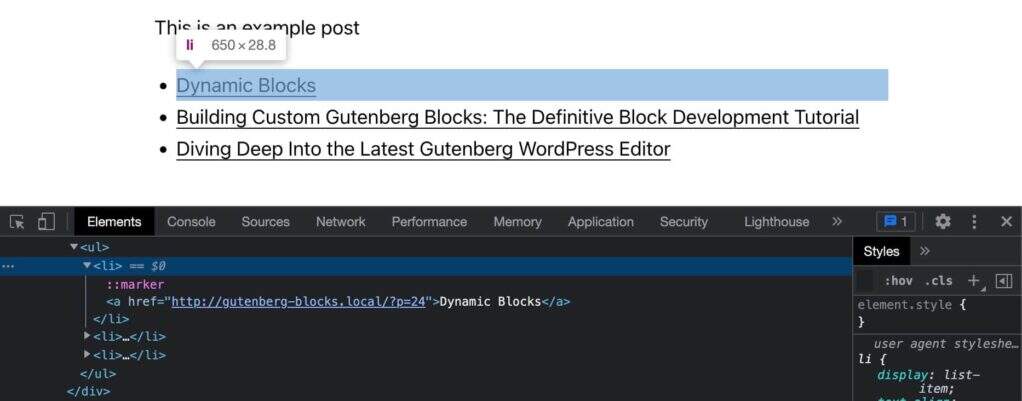
一個簡單的文章列表
在我們之前的文章中,我們提到您將使用useBlockPropsReact鉤子在JSX程式碼中標記區塊的wrapper元素。您需要在PHP函式中執行相同的操作。
WordPress為此提供了get_block_wrapper_attributes函式。
因此,更改您的PHP程式碼如下:
function author_box_author_plugin_render_author_content( $attr ) {
$args = array(
'numberposts'	=> $attr['numberOfItems']
);
$my_posts = get_posts( $args );
if( ! empty( $my_posts ) ){
$output = '<div ' . get_block_wrapper_attributes() . '>';
$output .= '<ul>';
foreach ( $my_posts as $p ){
$title = $p->post_title ? $p->post_title : 'Default title';
$url = esc_url( get_permalink( $p->ID ) );
$output .= '<li>';
$output .= '<a href="' . $url . '">' . $title . '</a>';
$output .= '</li>';
}
$output .= '</ul>';
$output .= '</div>';
}
return $output ?? '<strong>Sorry. No posts matching your criteria!</strong>';
}
現在已經為容器元素分配了一個wp-block-author-box-author-plugin類,並且該區塊具有不同的背景顏色。
然後get_posts函式獲取WP_Posts資料並foreach迴圈構建列表項(另請參見如何顯示get_posts返回的資料)。
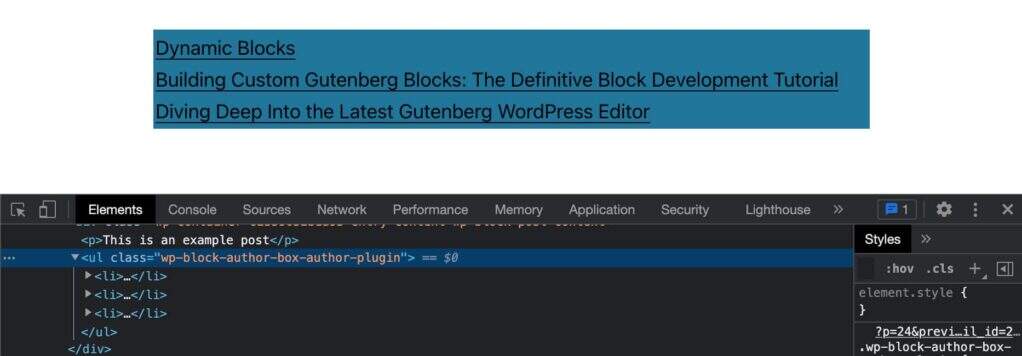
分配了CSS類的文章列表
新增特色圖片、日期和摘錄
接下來,您需要新增文章縮圖、日期和摘錄。在同一個檔案中,更改您的PHP程式碼,如下所示:
function author_box_author_plugin_render_author_content( $attr ) {
$args = array(
'numberposts'	=> $attr['numberOfItems']
);
$my_posts = get_posts( $args );
if( ! empty( $my_posts ) ){
$output = '<div ' . get_block_wrapper_attributes() . '>';
$output .= '<ul class="wp-block-author-box-author-plugin__post-items columns-">';
foreach ( $my_posts as $p ){
$title = $p->post_title ? $p->post_title : 'Default title';
$url = esc_url( get_permalink( $p->ID ) );
$thumbnail = has_post_thumbnail( $p->ID ) ? get_the_post_thumbnail( $p->ID, 'medium' ) : '';
$output .= '<li>';
if( ! empty( $thumbnail ) && $attr['displayThumbnail'] ){
$output .= $thumbnail;
}
$output .= '<h5><a href="' . $url . '">' . $title . '</a></h5>';
if( $attr['displayDate'] ){
$output .= '<time datetime="' . esc_attr( get_the_date( 'c', $p ) ) . '">' . esc_html( get_the_date( '', $p ) ) . '</time>';
}
if( get_the_excerpt( $p ) && $attr['displayExcerpt'] ){
$output .= '<p>' . get_the_excerpt( $p ) . '</p>';
}
$output .= '</li>';
}
$output .= '</ul>';
$output .= '</div>';
}
return $output ?? '<strong>Sorry. No posts matching your criteria!</strong>';
}
foreach迴圈遍歷$my_posts陣列。在每次迭代中,有幾個條件檢查屬性值並相應地構建輸出。
現在看看螢幕上的輸出:
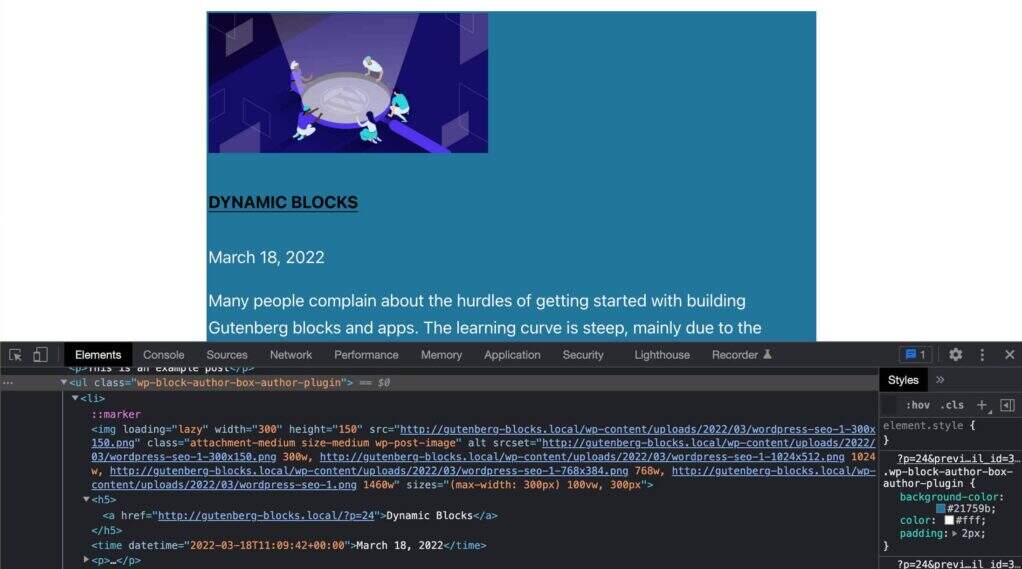
帶有特色圖片、日期和摘錄的文章列表
現在你可以執行你的測試了。更改日期、摘錄和縮圖設定,並在前端檢查塊內容的變化情況。
在列中顯示文章
在我們的 JavaScript 程式碼中,我們使用了一個columns-${ columns }類來在列中顯示文章預覽。現在我們需要在PHP中做同樣的事情。
為此,您只需新增這兩行程式碼:
$num_cols = $attr['columns'] > 1 ? strval( $attr['columns'] ) : '1';
$output .= '<ul class="wp-block-author-box-author-plugin__post-items columns-' . $num_cols . '">';
columns-n這會將一個類附加到ul包含文章預覽的元素。現在頁面上顯示的列數應該與區塊設定中設定的列數匹配。
建立作者框
最後,您需要構建包含作者詳細資訊的框,包括頭像、姓名和描述。
在回撥函式中,您需要新增一組條件來檢查每個屬性的當前值:
if( $attr['displayAuthorInfo'] ){
$output .= '<div class="wp-block-author-box-author-plugin__author">';
if( $attr['showAvatar'] ){
$output .= '<div class="wp-block-author-box-author-plugin__avatar">'
. get_avatar( get_the_author_meta( 'ID' ), $attr['avatarSize'] )
. '</div>';
}
$output .= '<div class="wp-block-author-box-author-plugin__author-content">';
$output .= '<div class="wp-block-author-box-author-plugin__name">'
. get_the_author_meta( 'display_name' )
. '</div>';
if( $attr['showBio'] ){
$output .= '<div class="wp-block-author-box-author-plugin__description">'
. get_the_author_meta( 'description' )
. '</div>';
}
$output .= '</div>';
$output .= '</div>';
}
程式碼非常簡單。它檢查每個屬性的當前值,如果是true,則生成必要的HTML。
現在儲存您的PHP檔案並將編輯器中的區塊與前端的相同塊進行比較。
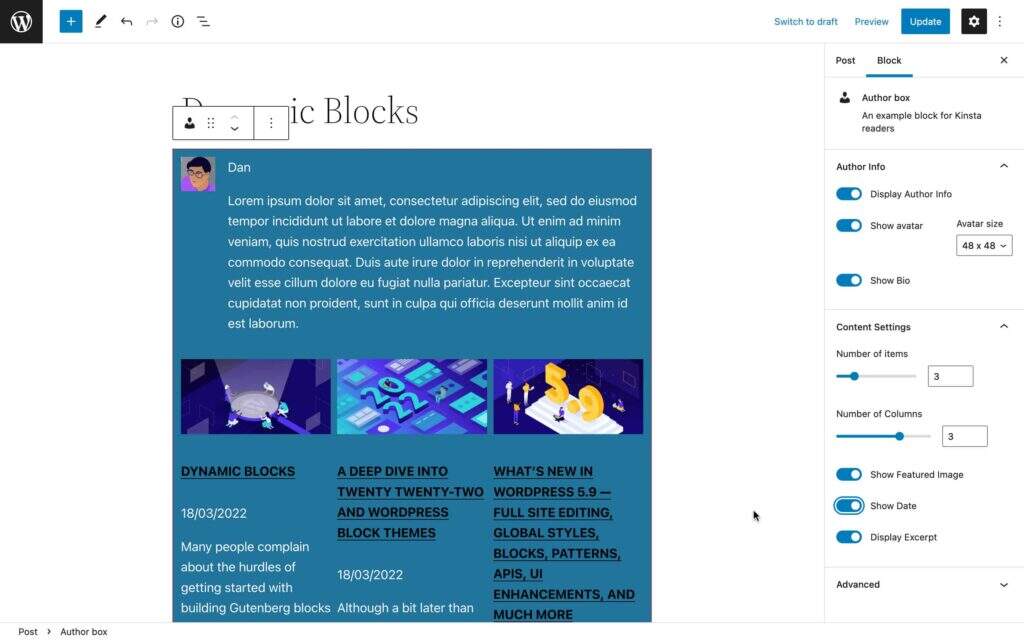
我們在區塊編輯器中的自定義區塊
您將在此公共Gist中找到示例區塊的完整程式碼。
動態區塊開發的推薦資源
如果您在閱讀本文時豎起耳朵並開始認識到學習如何建立古騰堡區塊所帶來的專業發展機會,那麼我們的建議是繼續探索和獲得區塊開發背後技術的新技能。
儘管仍然缺少可靠的官方文件,但仍然有很好的資源,包括免費和付費的,我們在撰寫本文時進行了諮詢。在眾多可用資源中,我們推薦以下資源:
官方資源
- 資料
- 核心資料
- 建立動態區塊
- 古騰堡區塊開發簡介
- MeetUp上的WordPress社交學習
來自WordPress核心貢獻者的推薦教學
- Ryan Welcher ( @ryanwelcher )使用getEntityRecords在Gutenberg請求資料
- Darren Ethier ( @nerrad )的 @wordpress/data API實用概述
JavaScript、React和Redux資源
- MDN的JavaScript教學
- React入門(官方)
- Redux教學(官方)
相關資源
- 什麼是JavaScript?看看網路上最流行的指令碼語言
- 處理JavaScript錯誤的權威指南
- 什麼是Node.js以及為什麼要使用它
- 如何在Windows、macOS和Linux上安裝Node.js和npm
- 如何使用多種工具除錯Node.js程式碼
- Node.js與PHP:正面對比
- 10種最受歡迎的Node.js應用程式型別
- Angular vs React:深入比較
小結
通過古騰堡區塊開發,我們已經到達了這個(第二次)漫長旅程的終點。
在本文中,我們介紹了一些高階主題,例如應用程式狀態和Redux儲存。但希望您現在應該對塊開發有更好的瞭解。
是的,在構建高階Gutenberg區塊時,Node.js、Webpack、Babel、React和Redux技能是必不可少的,但您無需成為React忍者即可開始。學習如何開發古騰堡並不一定很複雜。只需以正確的動機並遵循適當的學習路徑即可。
我們希望這篇文章 – 以及上一篇文章 -為您提供正確的指引,以找到您的道路並立即開始Gutenberg開發。



評論留言